Mapping items from Microsoft Dynamics 365 Business Central to Shopify products requires understanding how fields sync between systems. This guide provides clear mapping tables and setup instructions for manufacturers and B2B businesses integrating Business Central with Shopify.

Understanding the Sync Direction

Business Central can sync items to Shopify in three ways:

  • To Shopify: Export products from Business Central to your Shopify store. Best for manufacturers using Business Central as source of truth.
  • From Shopify: Import products from Shopify into Business Central. Useful for migrating existing Shopify catalogs or when Shopify is the product master.
  • Blank (default): Products only imported when orders come from Shopify. Manual control over product creation.

Set this in Business Central: Shopify Shop > Sync Item field

Core Field Mappings: Business Central to Shopify

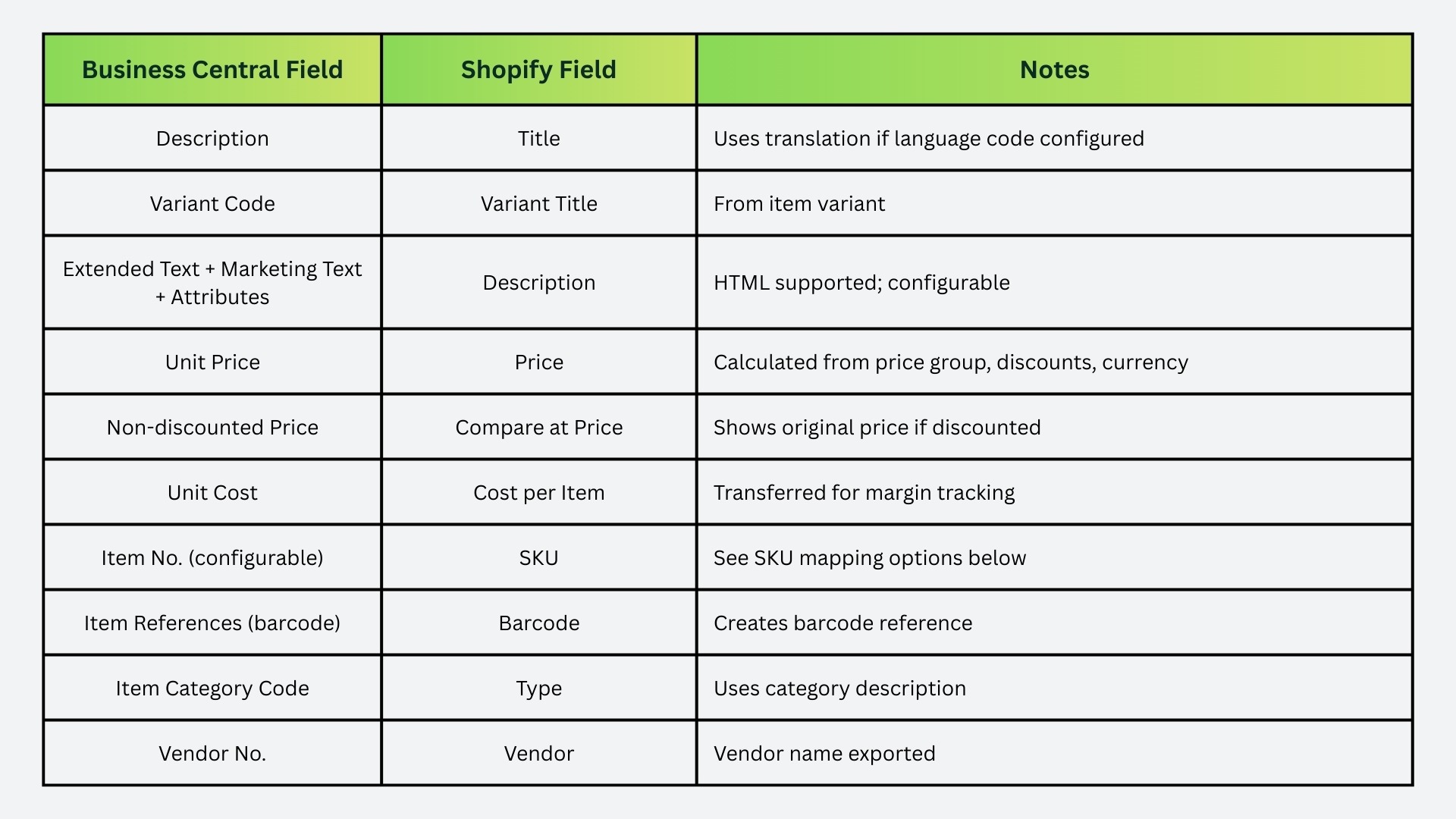
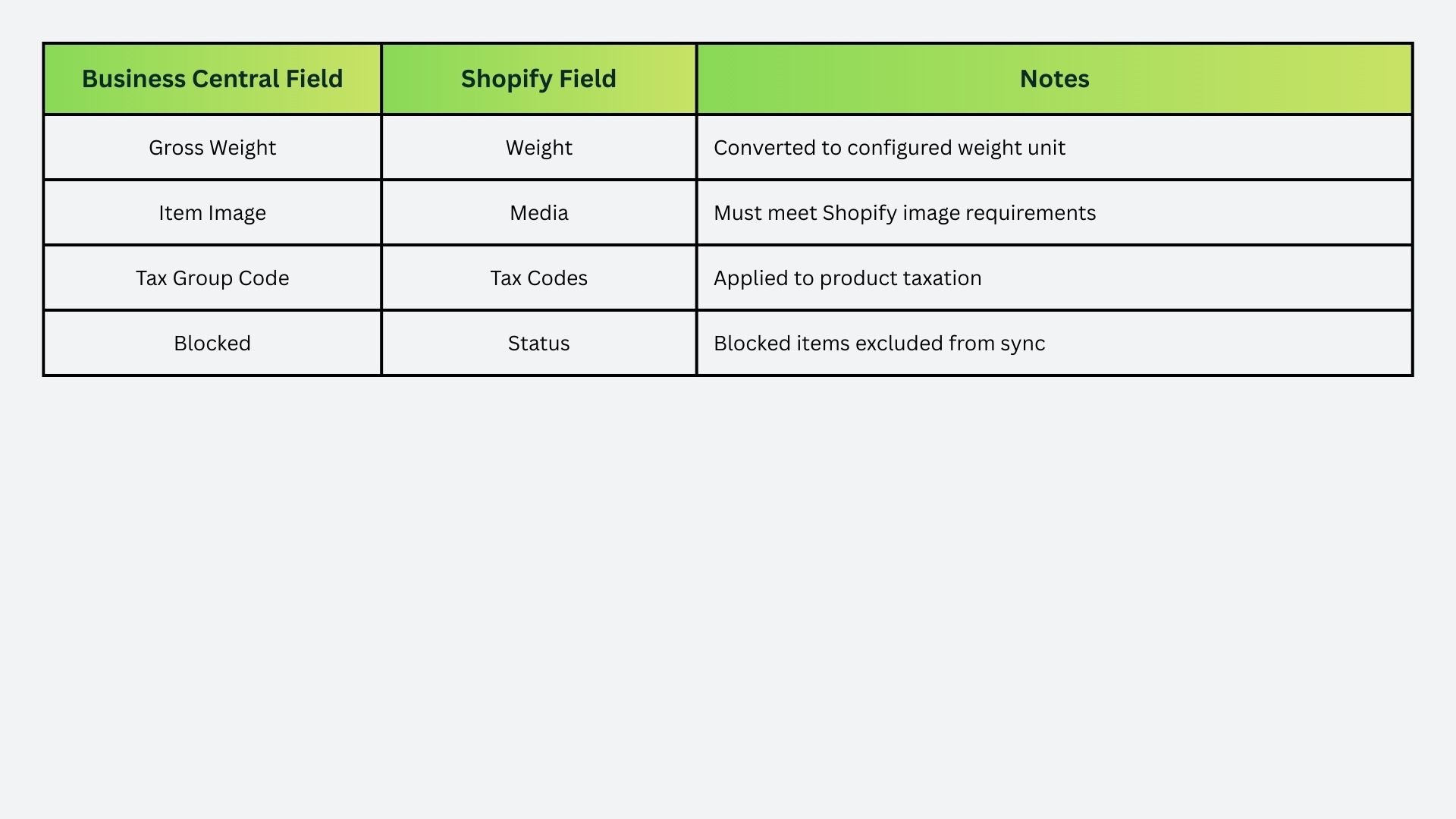
This table shows what Business Central fields map to Shopify product fields when you export items.

Core Field Mappings: Business Central to Shopify Table
Core Field Mappings: Business Central to Shopify Table 2

SKU Mapping Options

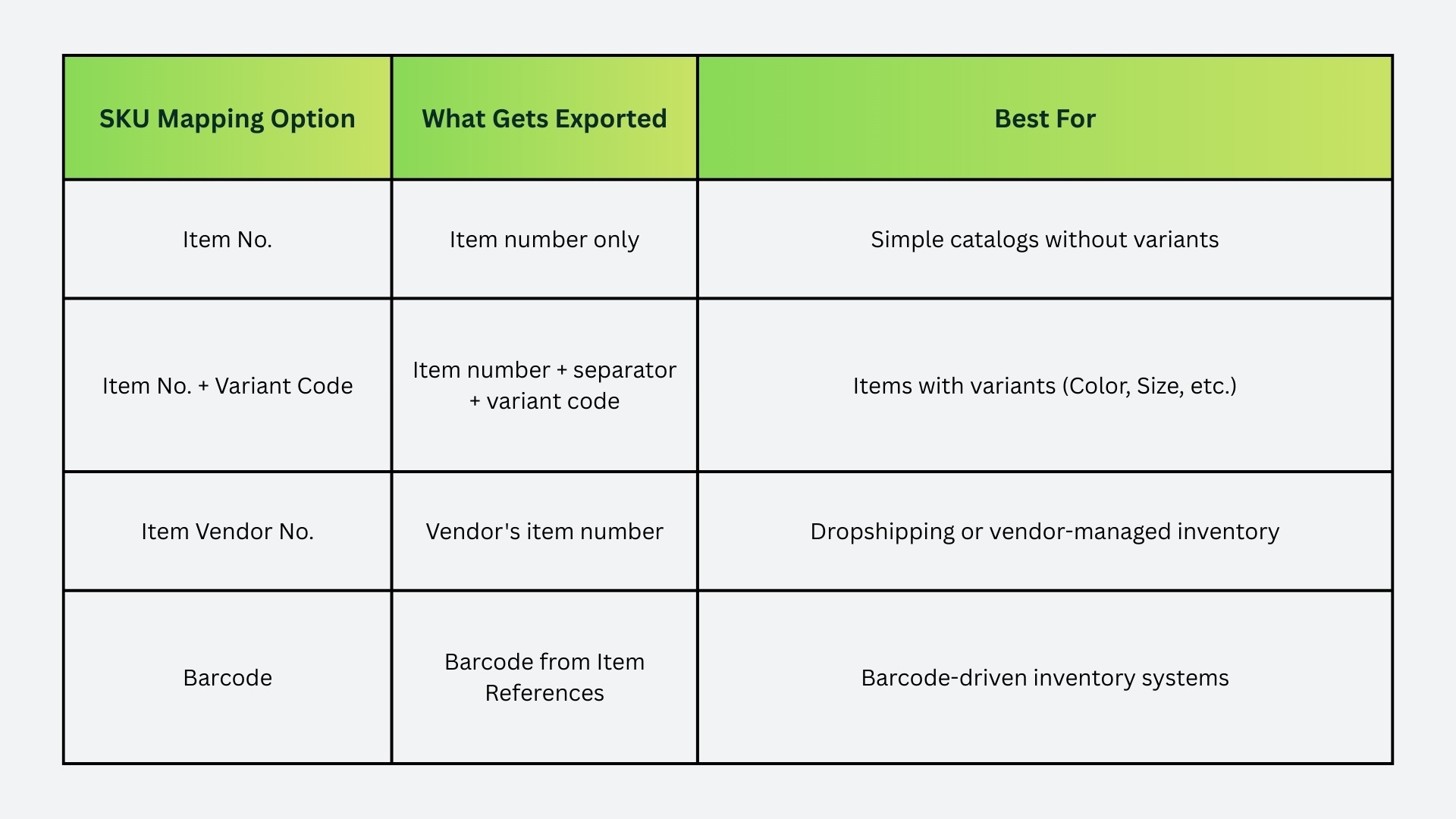
SKU mapping determines how Business Central identifies items in Shopify. Choose the right option for your catalog structure.

Export (Business Central to Shopify)

Export (Business Central to Shopify) - SKU Mapping Options

Example: Item 1000 with variant RED using "Item No. + Variant Code" and separator "/" creates SKU: 1000/RED

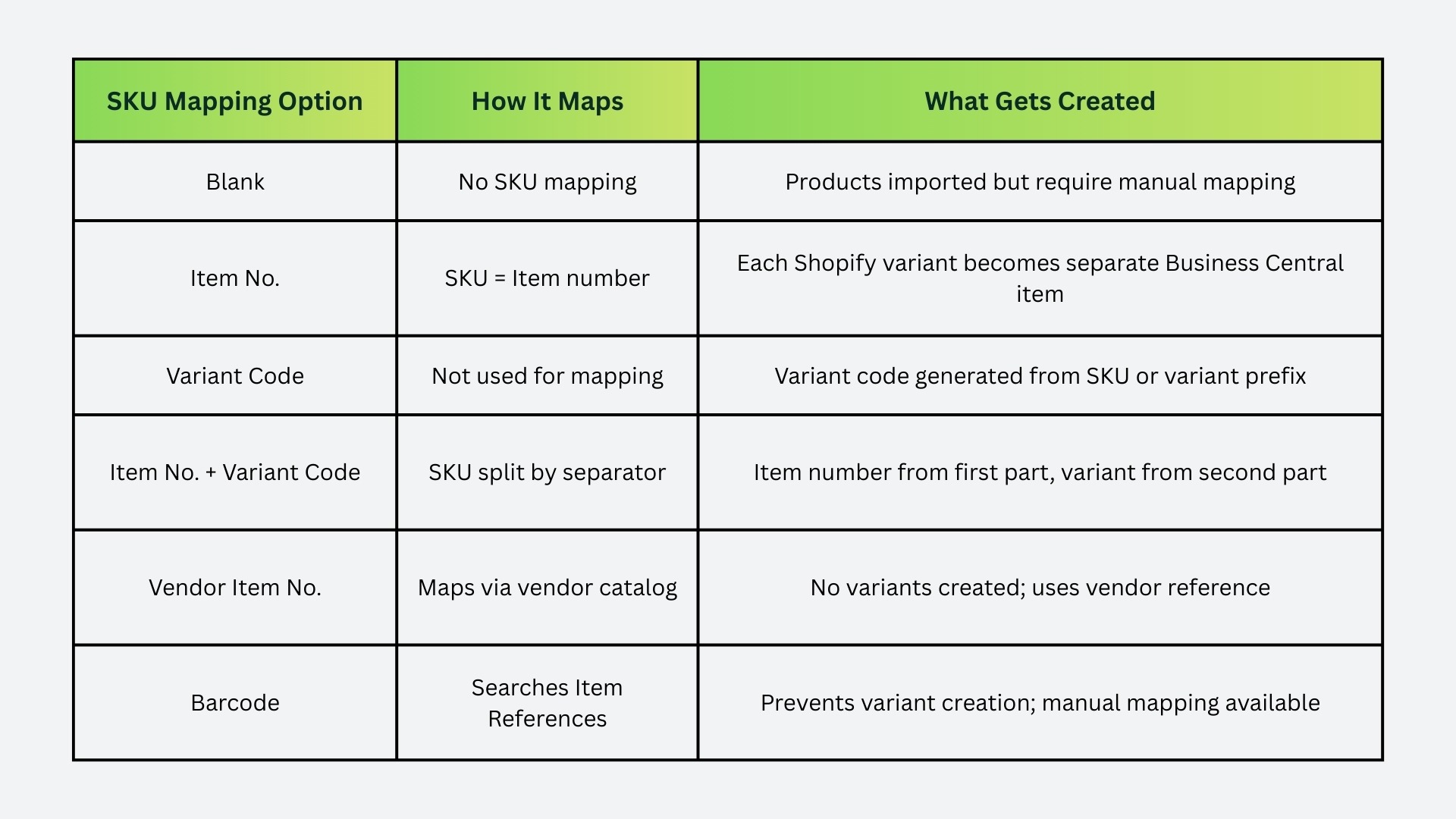
Import (Shopify to Business Central)

Import (Shopify to Business Central) - SKU Mapping Options

Critical setting: SKU Field Separator - Used with "Item No. + Variant Code" to split compound SKUs (common: /, -, _)

Step-by-Step: Export Items to Shopify

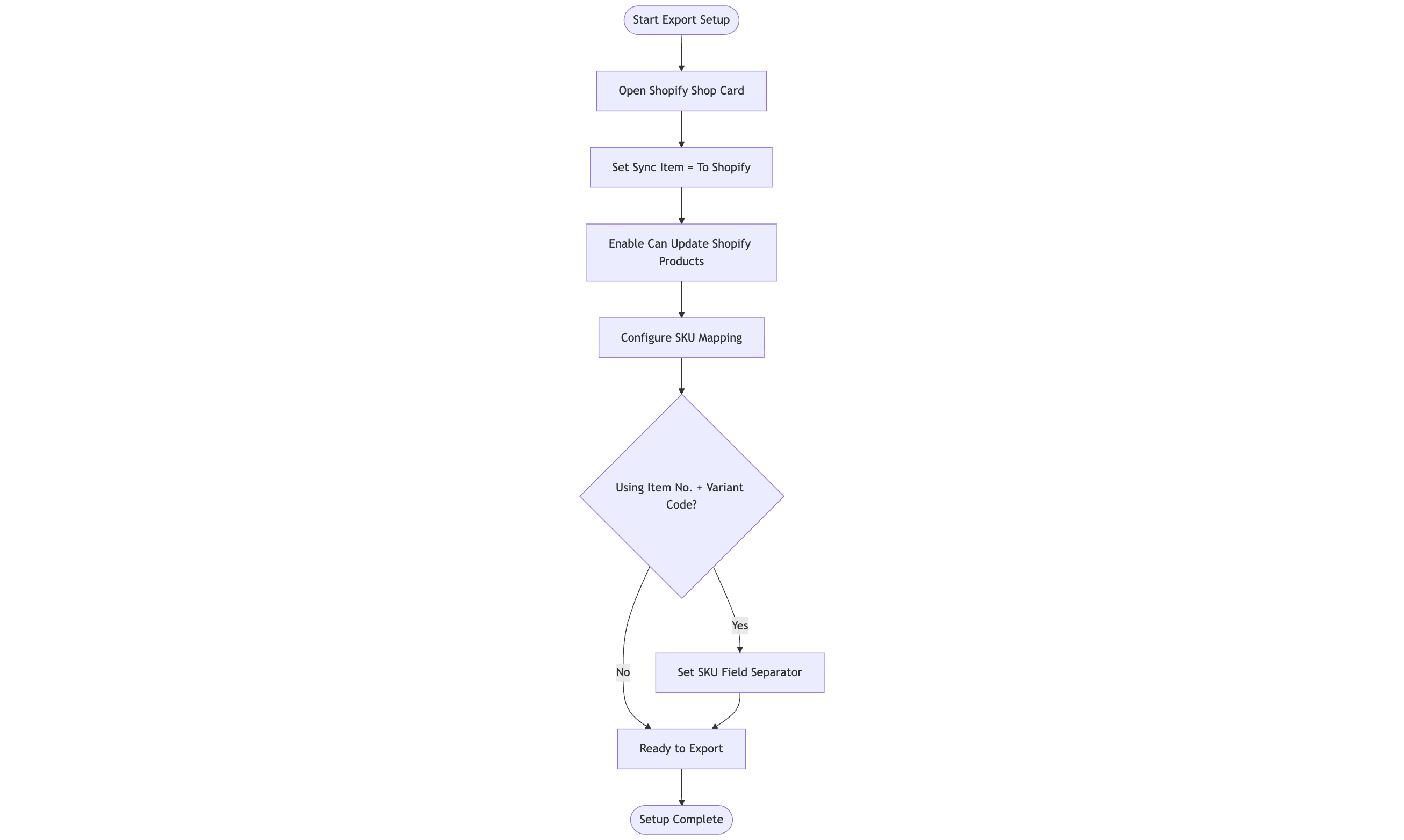
Initial Setup Flowchart

Configuration Steps:

  1. Go to Shopify Shop card in Business Central
  2. Set Sync Item to To Shopify
  3. Enable Can Update Shopify Products (allows ongoing updates)
  4. Configure SKU Mapping (recommend: Item No. + Variant Code for flexibility)
  5. Set SKU Field Separator if using compound SKUs (e.g., /)

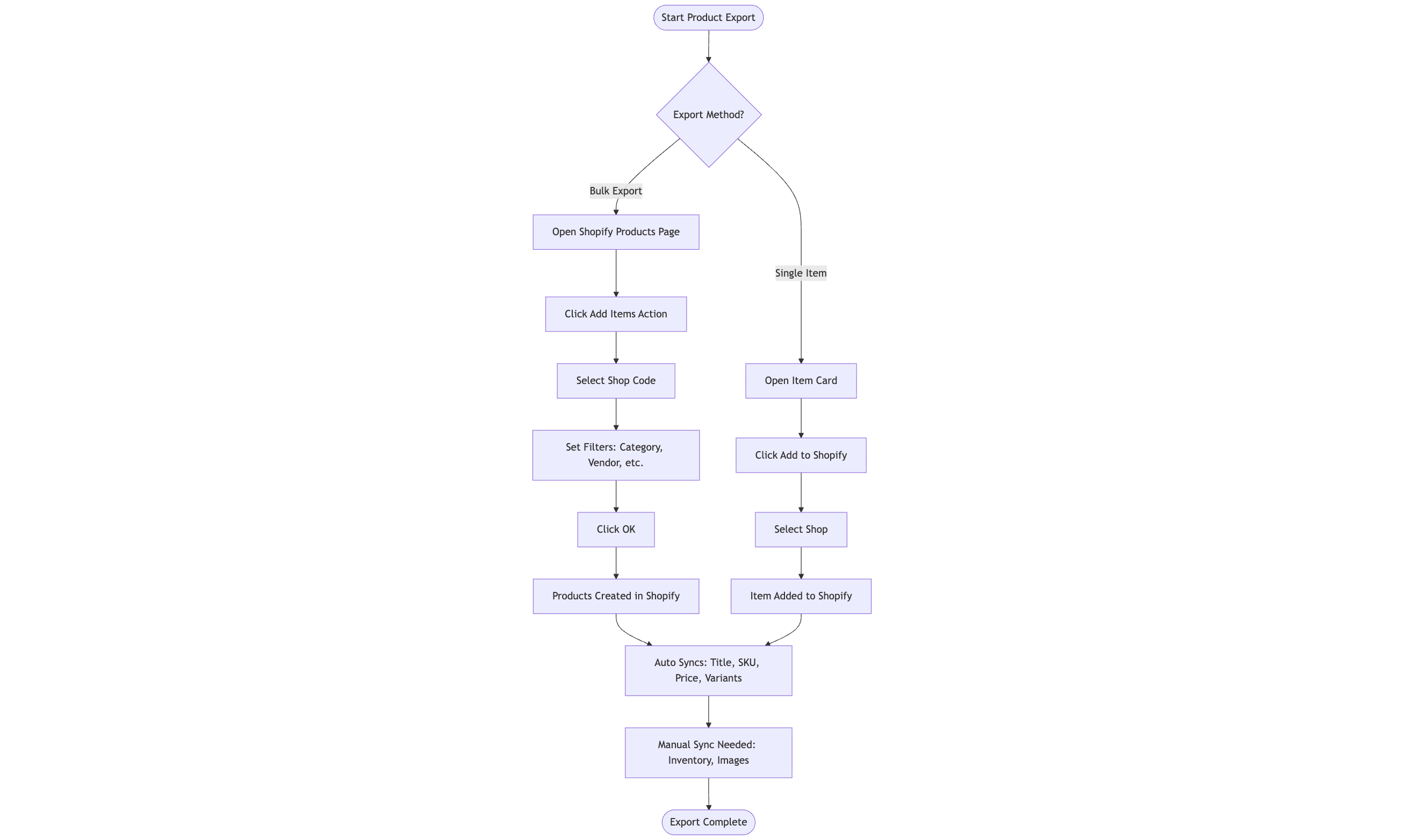
Export Products Flowchart

Export Options:

Option 1: Bulk Export

  1. Open Shopify Products page
  2. Click Add Items action
  3. Select Shop Code
  4. Set filters (item category, vendor, specific items)
  5. Click OK

Products created in Shopify with prices. Inventory and images sync separately.

Option 2: Single Item Export

  1. Open Item Card for specific item
  2. Click Add to Shopify action
  3. Select shop
  4. Item added immediately

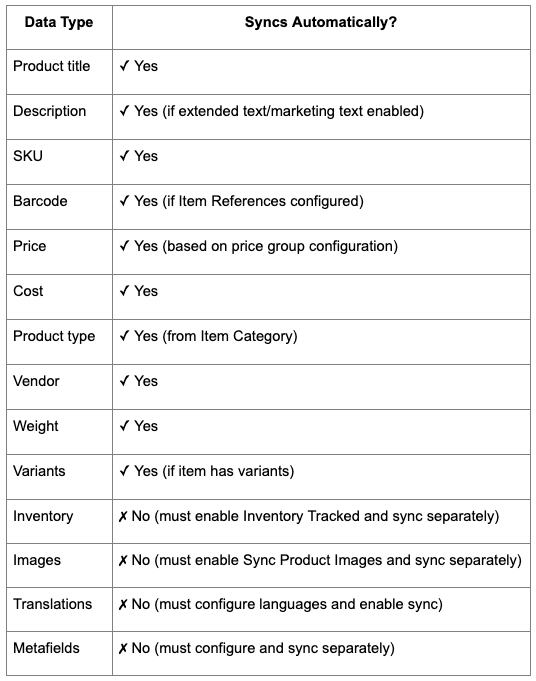
What Gets Synced Automatically

When you export items, Business Central syncs:

✓ Product title and description

✓ SKU and barcode

✓ Pricing (based on customer price group if configured)

✓ Product type and vendor

✓ Weight

✓ Variants (if item has variants in Business Central)

✓ Tax codes

Not automatic: Inventory levels, images, translations (must be enabled separately)

Step-by-Step: Import Items from Shopify

Import Setup Flowchart

Configuration Steps:

  1. Shopify Shop card
  2. Set Sync Item to From Shopify
  3. Enable Auto create unknown items (creates new items automatically)
  4. Set Item Template Code (template for new items)
  5. Enable Shopify Can Update Item (allows Shopify to update Business Central items)
  6. Configure SKU Mapping (recommend: Item No. + Variant Code)

Import Products Flowchart

Import Methods:

Manual Import:

  1. Shopify Shop page
  2. Click Sync Products action
  3. Products imported and matched by SKU or barcode

Scheduled Import:

  1. Set up job queue entry
  2. Schedule Sync Products batch job
  3. Runs automatically at configured intervals

Handling Unmapped Products Flowchart

Unmapped Products Resolution:

If Shopify products don't auto-map:

  1. Open Shopify Products page
  2. Review products with no Item No.
  3. Click Try Find Product Mapping (searches by SKU, barcode)
  4. Or manually set Item No. field for each product

SKU Mapping Decision Flowchart

Choose the right SKU mapping strategy for your catalog:

Inventory Sync Setup

Inventory levels sync separately from product data.

Inventory Sync Flowchart

Configuration Steps:

  1. Shopify Shop card, enable Inventory Tracked toggle
  2. Click Locations action
  3. Click Get Shopify Locations to import Shopify locations
  4. For each location:
    1. Set Location Filter (which Business Central location feeds this Shopify location)
    2. Set Stock Calculation method
    3. Set Default Product Location if needed

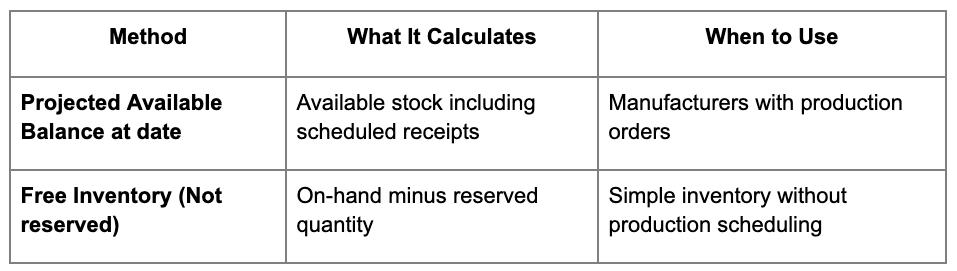
Stock Calculation Methods

Stock Calculation Methods in Business Central

Run Inventory Sync

Manual:

  • Shopify Shop page > Sync Inventory action
  • Or Shopify Products page > Sync Inventory action

Scheduled:

  • Set up job queue for automatic sync (hourly or daily)

Important: Inventory only syncs for products where Shopify has "Track quantity" enabled.

Price Sync Setup

Prices sync based on customer price groups and discounts configured in Business Central.

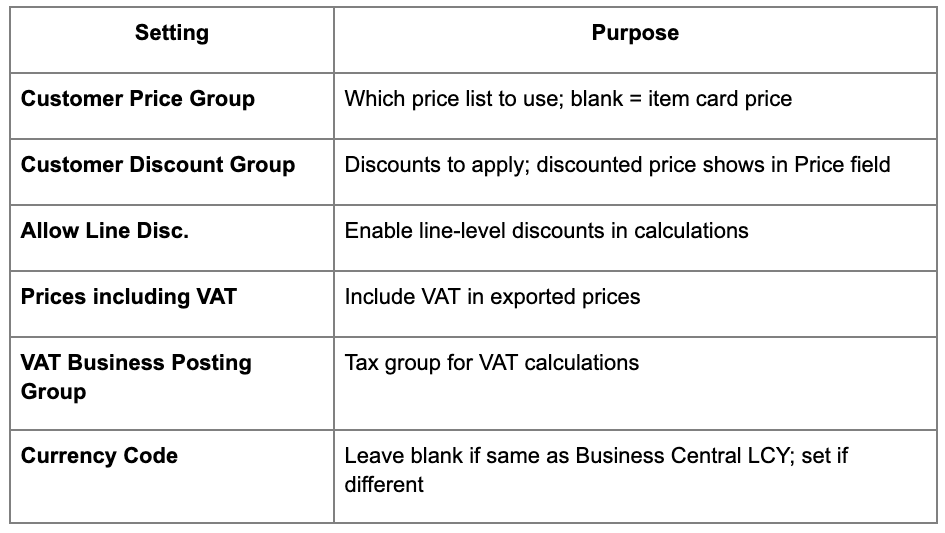
Configure Price Sync

Price Calculation Logic

Business Central creates a temporary sales quote with quantity 1 to calculate price:

  1. Checks customer price group for special pricing
  2. Applies applicable discounts
  3. Includes VAT if configured
  4. Exports Price (discounted) and Compare at Price (non-discounted)

Limitation: Only quantity-1 pricing exports. Volume discounts don't sync to Shopify.

Sync Prices

Manual: Shopify Products page > Sync Prices to Shopify action

If updating 100+ prices, sync runs asynchronously. Check Shopify Bulk Operations page for status.

Important: Only sends updates if price changed from last sync.

Image Sync Setup

Images sync separately from product data.

Configure Image Sync

Shopify Shop card, set Sync Product Images:

  • Disabled: No image sync
  • To Shopify: Export Business Central item images to Shopify
  • From Shopify: Import Shopify images to Business Central

Sync Images

From Shop Card: Shopify Shops > Sync Product Images action

From Products: Shopify Products > Sync Product Images action

Behavior:

  • Exported images replace previously exported images
  • Deleting image in Business Central doesn't delete from Shopify (manual deletion in Shopify Admin required)
  • Images must meet Shopify media requirements (size, format, resolution)

Handling Product Variants

Shopify products can have variants (e.g., Color, Size). Business Central items can also have variants. Mapping depends on your catalog structure.

Scenario 1: Business Central Items WITHOUT Variants

Export method: Use Add Item to Shopify action

Result: Single Shopify product with no variants

SKU recommendation: Item No. or Barcode

Scenario 2: Business Central Items WITH Variants

Export method: Use Add Item to Shopify action

SKU configuration: Set SKU Mapping to Item No. + Variant Code

Result: Shopify product with variants matching Business Central item variants

Example:

  • Business Central: Item 1000, Variants: RED, BLUE, GREEN
  • Shopify: Product 1000 with 3 variants (SKUs: 1000/RED, 1000/BLUE, 1000/GREEN)

Scenario 3: Multiple Items as Shopify Variants

You can add separate Business Central items as variants of a single Shopify product.

Use case: Different products that should appear as options (e.g., small/medium/large sizes that are different items in Business Central)

How to:

  1. Shopify Products page
  2. Select the parent product
  3. Variants FastTab > Add item as Variant action
  4. Select additional items to add as variants

Important limitations:

  • Can't add to products with multiple existing options (e.g., Color + Material)
  • Can't use if UoM as Variant toggle enabled
  • Item variants themselves don't transfer (only parent items)

Barcode Mapping

Barcodes have highest priority in product matching.

How Barcode Mapping Works

Export: If item has barcode in Item References, exports to Shopify Barcode field

Import: Searches Item References for matching barcode; creates reference if new

Recommendation: Set barcodes on all items and variants for reliable matching during imports.

Setting Up Barcodes

  1. Item Card > Item References action
  2. Add reference with Reference Type = Barcode
  3. Enter barcode value
  4. If item has variants, add barcode for each variant

Unit of Measure as Variant

Shopify doesn't natively support multiple units of measure. Use variants to represent different UoM (piece, box, case).

Enable UoM as Variant

  1. Shopify Shop card
  2. Personalize page, add UoM as Variant toggle
  3. Enable toggle
  4. Set Variant Option Name for UoM (default: "Unit of Measure")

How It Works

Export: Each item UoM becomes a Shopify variant

Example:

  • Business Central: Item 2000, UoM: PCS (base), BOX (6 PCS), CASE (24 PCS)
  • Shopify: Product 2000 with 3 variants: PCS, BOX, CASE

Important Considerations

  • Inventory accuracy: Availability calculated per item, not per UoM. Same quantity shows for all UoM variants adjusted by Qty. per UoM.
  • Example problem: 6 PCS available shows as 6 for PCS variant and 1 for BOX (6 PCS) variant. Customer could order 6 PCS AND 1 BOX, creating overselling (requires 12 PCS but only 6 available).
  • SKU management: For items with both matrix variants (Color) and UoM variants, set SKU Mapping = Item No. + Variant Code and ensure Shopify SKUs match across UoM variants.

Recommendation: Only use UoM as Variant if you actively manage inventory to prevent overselling.

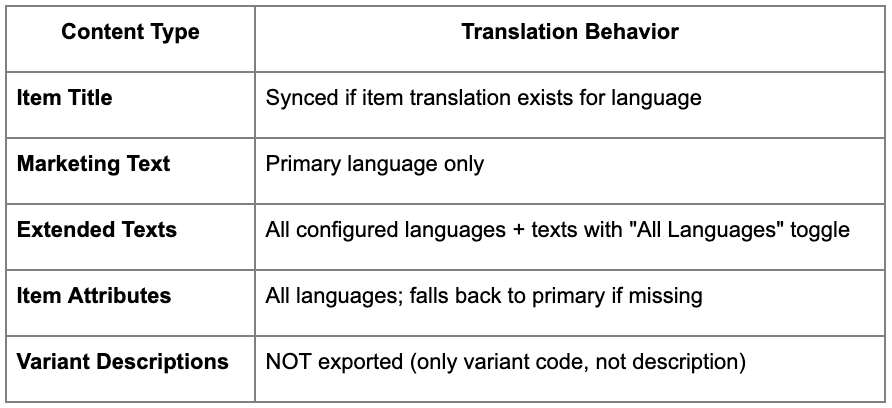
Translation Sync

Export product information in multiple languages for international Shopify markets.

Setup Translations

  1. Shopify Shops > Languages action
  2. Click Refresh to import enabled Shopify languages (primary language excluded)
  3. For each language:
    1. Set Language Code matching Business Central language
    2. Enable Sync translations toggle

What Gets Translated

B2B Catalog Pricing (Shopify Plus Only)

Shopify Plus B2B catalogs support company-specific pricing.

Setup B2B Catalog Sync

  1. Ensure Shopify access token has B2B permissions
  2. Shopify B2B Catalogs page > Get Catalogs
  3. For each catalog:
    1. Set Customer Price Group
    2. Set Customer Discount Group
    3. Configure VAT settings
    4. Enable Sync Prices toggle
  4. Click Sync Prices action

Pricing Strategies

  • Default Strategy: Use Customer Price Group + Discount Group (similar to standard Shopify sync)
  • Custom Strategy: Set Customer No. field; ignores price groups and uses that customer's configured pricing from customer card

Metafields Sync

Shopify metafields extend product data with custom fields.

Accessing Metafields

Shopify Products page OR Shopify Variants page > Shopify Metafields action

Requirements:

  • Product Sync = "Products to Shopify"
  • Can update Shopify products toggle enabled

Supported Metafield Types

✓ Date, Date and time

✓ Dimension, Volume, Weight

✓ Decimal, Integer

✓ Single line text, Multi-line text

✓ Boolean, Color, URL, Money

✓ Product, Variant, Collection references

✗ NOT supported: Rich text, List of values, Rating

Managing Metafields

Import definitions: Get Metafield Definitions action (imports standard metafields from Shopify)

Update values: Edit in Business Central, syncs on next product sync

Immediate sync: Adding new metafield record sends request immediately

Common Mapping Scenarios

Scenario: Simple Catalog (No Variants)

Business Central Setup:

  • Items without variants
  • Unique item numbers or barcodes

Shopify Shop Configuration:

  • Sync Item: To Shopify
  • SKU Mapping: Item No. or Barcode
  • Can Update Shopify Products: Enabled

Process:

  1. Shopify Products > Add Items
  2. Select items to export
  3. Products created in Shopify with SKU = Item No.

Result: One Business Central item = One Shopify product

Scenario: Catalog with Variants (Color, Size, etc.)

Business Central Setup:

  • Items with variants configured
  • Variant codes assigned (RED, BLUE, SM, MD, LG)

Shopify Shop Configuration:

  • Sync Item: To Shopify
  • SKU Mapping: Item No. + Variant Code
  • SKU Field Separator: / (or -, _)
  • Can Update Shopify Products: Enabled

Process:

  1. Shopify Products > Add Items
  2. Select items with variants
  3. Products created with variants matching Business Central structure

Result: Item 1000 with variants RED, BLUE, GREEN creates:

  • Shopify Product: 1000
  • Shopify Variants: 1000/RED, 1000/BLUE, 1000/GREEN

Scenario: Bulk Import from Existing Shopify Store

Goal: Bring existing Shopify products into Business Central

Shopify Shop Configuration:

  • Sync Item: From Shopify
  • Auto create unknown items: Enabled
  • Item Template Code: Configure template for new items
  • SKU Mapping: Item No. + Variant Code
  • SKU Field Separator: Match what Shopify uses

Process:

  1. Ensure Shopify products have SKUs matching your convention
  2. Shopify Shop > Sync Products
  3. Review Shopify Products page
  4. Use Try Find Mappings for unmapped products
  5. Manually map any remaining products

Result: Shopify products imported as Business Central items with matching SKUs

Scenario: Continuous Two-Way Sync

Goal: Keep Business Central and Shopify synchronized automatically

Shopify Shop Configuration:

  • Sync Item: To Shopify (Business Central as source of truth)
  • Can Update Shopify Products: Enabled
  • Inventory Tracked: Enabled
  • Sync Product Images: To Shopify

Job Queue Setup:

  • Schedule Sync Products job (daily or on-demand)
  • Schedule Sync Inventory job (hourly or every 15 minutes)
  • Schedule Sync Prices job (daily)

Result: Changes in Business Central automatically flow to Shopify on next scheduled sync

Field Mapping Quick Reference

What Syncs Automatically

What DOESN'T Sync from Shopify to Business Central

When importing products from Shopify, these fields don't update Business Central:

  • Product Description (not imported)
  • Compare at Price (not imported)
  • SEO Title and Meta Description (not imported)
  • Product Status (not imported)
  • Media/Images (unless configured)
  • Shopify Metafields (stays in Shopify only)

Why: Business Central is typically the source of truth for product master data. Shopify-specific fields (SEO, marketing descriptions) stay in Shopify.

Troubleshooting Common Issues

Products Not Showing B2B Pricing

Problem: Exported products show retail pricing instead of B2B wholesale rates

Solution:

  1. Verify you selected both Customer AND Company Location when creating draft order or quote
  2. Check customer has B2B pricing configured in Customer Price Group
  3. Verify B2B catalog assigned to that company in Shopify
  4. Confirm Customer Price Group set on Shopify Shop card

Inventory Not Syncing

Problem: Stock levels in Shopify don't match Business Central

Solution:

  1. Verify Inventory Tracked toggle enabled on Shopify Shop card
  2. Check Track quantity enabled in Shopify Admin for those products
  3. Confirm Shopify locations have inventory assigned (not all at zero)
  4. Verify Shopify variant linked to correct Business Central item/variant
  5. Review Shopify Inventory FactBox on item card for sync status
  6. Check Shopify Log Entries for errors (filter by inventorySetOnHandQuantities)

Variants Not Creating Correctly

Problem: Shopify variants don't match Business Central item variants

Solution:

  1. Verify SKU Mapping set to Item No. + Variant Code
  2. Check SKU Field Separator matches separator in SKUs (/, -, \_)
  3. Ensure Business Central item variants have Variant Codes assigned
  4. Confirm SKUs in Shopify match expected format (Item No. + Separator + Variant Code)
  5. Review Shopify Products page for mapping errors

Price Sync Not Working

Problem: Prices in Shopify don't update when changed in Business Central

Solution:

  1. Verify Can Update Shopify Products enabled
  2. Check Customer Price Group configured on Shopify Shop card
  3. Confirm price actually changed (connector only updates if price different from last sync)
  4. Run Sync Prices to Shopify action manually
  5. For 100+ price updates, check Shopify Bulk Operations page for async job status

Images Not Syncing

Problem: Product images not appearing in Shopify

Solution:

  1. Check Sync Product Images set to To Shopify
  2. Verify images attached to item card in Business Central
  3. Confirm images meet Shopify requirements (size, format, resolution)
  4. Run Sync Product Images action manually
  5. Review Shopify Log Entries for image upload errors

SKU Mismatch Errors

Problem: "SKU already exists" error when exporting products

Solution:

  1. Check for duplicate SKUs in Business Central
  2. Verify SKU Mapping matches your catalog structure
  3. For compound SKUs, confirm separator configured correctly
  4. Review existing Shopify products for SKU conflicts
  5. Use Try Find Product Mapping to link existing Shopify products instead of creating duplicates

Best Practices

Plan Your SKU Strategy

Decide on SKU format before starting sync:

  • Simple catalogs: Use Item No. for straightforward matching
  • Catalogs with variants: Use Item No. + Variant Code with consistent separator
  • Barcode-driven: Use Barcode if your warehouse operations rely on barcodes

Consistency is critical: Changing SKU mapping after initial sync causes mismatches.

Test with Small Batch First

Before bulk export:

  1. Select 5-10 representative items (some with variants, some without)
  2. Export to Shopify
  3. Verify SKUs, prices, inventory, images all correct
  4. Check variants created properly
  5. Test price calculations match expectations

Catch configuration issues early before exporting full catalog.

Set Up Scheduled Syncs

Manual syncing doesn't scale.

Recommended schedule:

  • Products: Daily or on-demand (low frequency)
  • Inventory: Every 15-60 minutes (high frequency)
  • Prices: Daily (medium frequency)
  • Images: Weekly or on-demand (low frequency)

Use Business Central job queue to automate.

Enable Inventory Tracking from Start

Don't wait to enable inventory sync.

Why: Shopify products created without "Track quantity" enabled can't have inventory synced later without manual intervention.

Setup: Enable Inventory Tracked on Shopify Shop card BEFORE first product export.

Document Your Field Mappings

Create internal documentation:

  • Which Customer Price Group used for Shopify pricing
  • SKU format and separator
  • Which Business Central locations map to which Shopify locations
  • Stock calculation method chosen
  • Any custom metafield mappings

Helps troubleshooting and onboarding new team members.

Monitor Sync Logs

Check Shopify Log Entries regularly:

  • Filter by error severity
  • Look for patterns (same products failing repeatedly)
  • Address errors promptly before they accumulate

Navigation: Shopify Shop card > Log Entries action

Use Item Templates for Consistency

When Auto create unknown items enabled, Item Template determines:

  • Default General Product Posting Group
  • Default Inventory Posting Group
  • Default Costing Method
  • Other item defaults

Configure template thoughtfully to ensure imported items have correct accounting setup.

Handle Blocked Items Properly

Blocked items automatically excluded from sync.

Workflow:

  1. Block item in Business Central when discontinued
  2. Connector skips blocked items on next sync
  3. Manually archive or delete from Shopify Admin if needed

Setting: Action for Removed Products and Blocked Items controls behavior (Blank, Status to Draft, Status to Archived)

Conclusion

Mapping Business Central items to Shopify products requires understanding field mappings, SKU strategy, and sync configuration.

The key decisions are:

  • SKU Mapping: Choose the format that matches your catalog structure (simple Item No., compound Item No. + Variant Code, or Barcode-driven).
  • Sync Direction: Determine whether Business Central or Shopify is source of truth for product data.
  • Inventory and Pricing: Configure how stock levels and prices calculate and sync.
  • Variants: Plan how Business Central item variants map to Shopify product variants.

Start with a small test batch, verify mappings work correctly, then scale to full catalog. Set up scheduled syncs to keep systems in sync automatically.

Proper field mapping ensures accurate product data, inventory levels, and pricing across both systems. This creates a seamless experience for B2B customers and streamlines operations for manufacturers.

Additional Resources: