How to Set Up B2B Order Review Workflows in Shopify
Some B2B orders need approval before they're processed. This might be because of order value, customer credit limits, payment terms, or company policies. Shopify lets you control when B2B orders require review at checkout, ensuring that high-value or high-risk orders get proper oversight before fulfillment begins.
Why B2B Orders Need Review
B2B orders often require review for several reasons:
Order Value
Large orders might need approval to:
Verify customer credit limits
Confirm inventory availability
Check for pricing errors
Ensure the order is legitimate
Payment Terms
Orders using net terms or invoice payment might need review to:
Verify credit approval
Confirm payment terms are correct
Check customer payment history
Ensure the order fits within credit limits
New Customers
First-time orders from new customers often need review to:
Verify customer information
Confirm business legitimacy
Set appropriate credit limits
Establish payment terms
Custom Requirements
Some orders need review because they:
Require custom manufacturing
Have special shipping requirements
Need manager approval per company policy
Include products that require verification
Shopify's Order Review Feature
Shopify Plus includes the ability to control when B2B orders require review at checkout using the Payment Customization Function API. This approach:
Automatically holds orders that meet your custom criteria
Allows you to define dynamic business rules based on order value, cart contents, customer attributes, and more
Lets you approve or cancel orders from the admin
Provides a smooth customer experience (customers know their order is pending review)
Important: There is no direct "Order review" or "Order approval" setting under Settings > Customer accounts in Shopify admin. Order review is implemented programmatically using the Payment Customization Function API, which is available only on Shopify Plus stores with B2B features.
Setting Up Order Review Rules
To require order review dynamically for B2B orders, you need to implement the orderReviewAdd operation in a Payment Customization Function. This lets you define custom rules for when orders should be sent to draft for review.
You can base these rules on various conditions:
Order value thresholds
Payment methods (e.g., all invoice orders)
Customer segments (e.g., new customers)
Product categories
Shipping methods
Cart contents
Customer attributes
For managing B2B orders requiring review, you would:
Develop and deploy a Payment Customization Function with your custom order review logic using the orderReviewAdd operation
Set up automated notifications using Shopify Flow or n8n to notify your team when orders are sent to draft for review
Configure notification channels through your workflows or apps integrated with Shopify, such as email alerts, Slack notifications, or other communication platforms
This approach provides granular control beyond static settings and allows you to implement complex business rules that adapt to your specific B2B requirements.
Using Payment Customization Function API
The Payment Customization Function API is the method for implementing order review in Shopify B2B. This approach provides granular control, allowing you to define custom business rules based on order value, cart contents, customer attributes, and other dynamic conditions.
How It Works
The Payment Customization Function API uses the orderReviewAdd operation to automatically send orders to draft for review based on your custom logic. This lets you:
Require review for high-value orders
Flag orders containing pre-order items
Review orders from new customers
Apply complex business rules that combine multiple conditions
Dynamically control which B2B orders require review at checkout
Getting Started
To implement order review using the Payment Customization Function API:
Scaffold the function: Use Shopify CLI to create a payment customization function:
Implement custom logic: Write your function to evaluate order details (order value, cart contents, customer attributes) and decide when to add a review requirement
Return operations: The function returns a list of operations including the orderReviewAdd operation to mark orders for review
Activate the function: Activate the function in your store (you can have up to 25 payment customization functions active)
Important Notes
This feature is available only for B2B purchases on stores with the Shopify Plus plan
This approach provides dynamic control over order validation and workflow automation
You can combine this with other payment customization functions for comprehensive checkout control
When implementing order review using the Payment Customization Function API, you can create complex business rules based on various conditions. These conditions allow you to automatically send orders to draft for review, giving you granular control over your B2B order validation process.
Note: This feature is available only on Shopify Plus stores with B2B functionality enabled.
Order Value Thresholds
Require review for orders above or below specific amounts:
Example: All orders over $10,000 require review
Example: Orders over $5,000 from customers with less than 6 months history
Example: Orders below a minimum order value
Cart Contents
Trigger review based on what's in the cart:
Specific products (e.g., high-value items, restricted products)
Product categories (e.g., custom or made-to-order items, products with long lead times)
Quantities (e.g., bulk orders above a certain threshold)
Product combinations (e.g., orders containing both product A and product B)
Customer Attributes
Require review based on customer information:
New customers (first order)
Specific customer segments
Company locations
Customers with payment issues
Customers in specific tiers
Customers with credit limits
Payment Methods
Require review for orders using certain payment methods:
Invoice or net terms orders
Manual payment methods
ACH payments from new customers
Specific payment gateways
Shipping Methods
Require review for orders with specific shipping options:
International shipping
Expedited shipping
Special handling requirements
White-glove delivery services
You can combine these conditions to create complex business rules. For example, you might require review for orders over $10,000 from new customers using invoice payment, or orders containing specific high-value products with international shipping.
The Review Process
When an order requires review using the Payment Customization Function API with the orderReviewAdd operation, here's what happens:
1. Customer Completes Checkout
The customer completes checkout. Instead of the order being immediately finalized, the order is submitted as a draft for review.
2. Customer Sees Pending Message
The customer sees a message indicating that their order is pending approval or review. This sets expectations and prevents confusion about order status.
3. Order Appears as Draft
The order appears in your Shopify admin as a draft order. It has not been finalized and will not be processed until you approve it.
4. Team Notification
Your team receives a notification through your automated workflow (email, Slack, etc.) that review is needed. Since Shopify doesn't provide built-in notifications for B2B order reviews, these notifications are set up using Shopify Flow or n8n.
5. Review and Decision
You review the order details and either:
Approve: Create the order from the draft, which finalizes it and begins normal order processing
Reject: Cancel or decline the draft order
During review, you may check:
Customer information
Credit limits and payment terms
Inventory availability
Order details and pricing
6. Customer Notification
Customer receives notification:
If approved: Order confirmation and processing begins
If rejected: Explanation and next steps
This process ensures that orders requiring review are not finalized until you approve them, giving you control over high-value or special orders before they enter your fulfillment workflow.
Customer Experience
The review process should be transparent for customers:
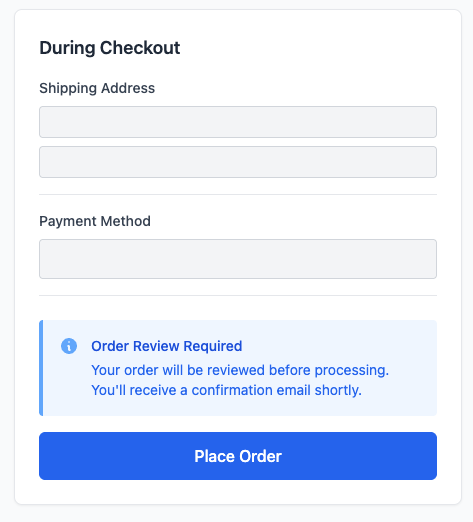
During Checkout
Customers see a message that their order will be reviewed. This sets expectations and prevents confusion.
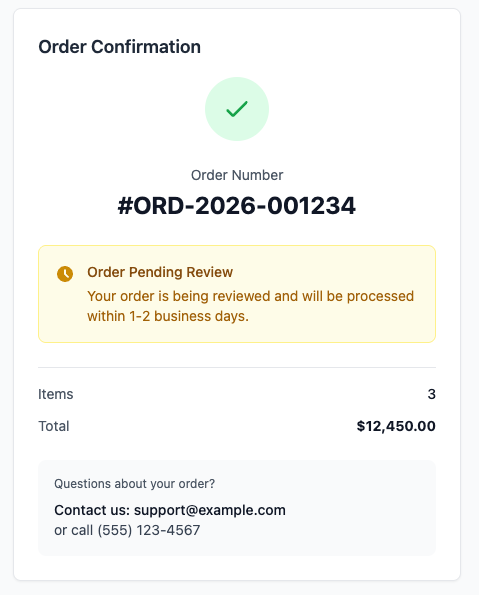
Order Confirmation
After placing an order, customers receive a confirmation that includes:
Order number
Message that order is pending review
Expected timeline for review
Contact information for questions
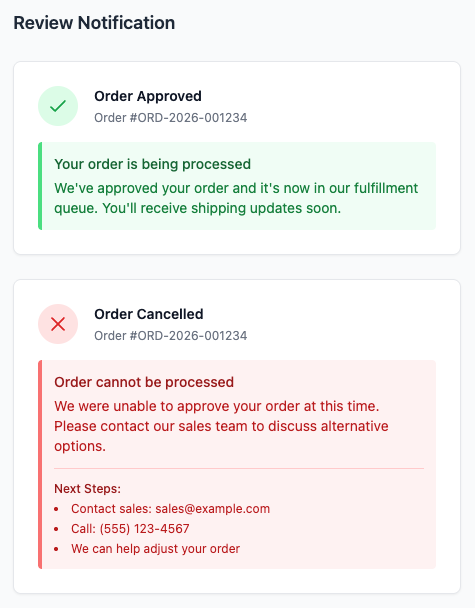
Review Notification
When the order is reviewed:
Approved orders: Confirmation that order is being processed
Cancelled orders: Clear explanation and next steps
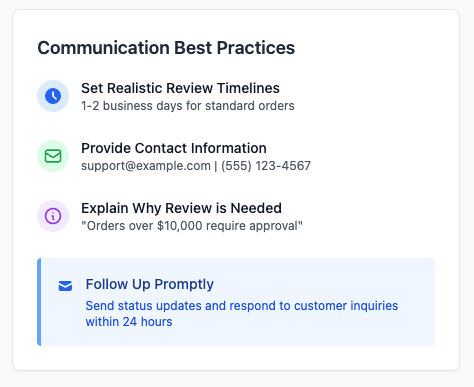
Communication
Keep customers informed:
Set realistic review timelines
Provide contact information
Explain why review is needed (if appropriate)
Follow up promptly
Automating Review Workflows
You can automate parts of the review process using Shopify Flow or n8n:
Automating Notifications
Since Shopify does not provide built-in notifications specifically for B2B order reviews, you can set up workflows to notify your team when an order is sent to draft for review. Here's how you can automate notifications:
Use Sidekick to build workflows: With Shopify's Winter '26 update, you can use Sidekick (Shopify's AI assistant) to build workflow automations directly in the Shopify Flow app. Simply describe the workflow you want to automate in natural language, and Sidekick will build it for you. For example, you could say "Notify the finance team when a draft order over $10,000 is created" or "Send a Slack message to the sales team when a new customer's order requires review." Sidekick will create the complete workflow with triggers and actions, making it much easier than manually configuring workflows. This feature is part of Sidekick's workflow automations capability. For more details, see the Shopify Flow documentation.
Use Shopify Flow manually: If you prefer to build workflows yourself, you can manually create a workflow that triggers when a draft order is created or updated. Add actions to send email notifications to specific team members or groups.
Integrate with communication tools: Use Flow or third-party apps to integrate with Slack and send real-time alerts when orders require review.
Use n8n: Use n8n to connect Shopify with other notification platforms, allowing you to send alerts through multiple channels.
This setup helps your team stay informed about orders requiring review and streamlines your B2B order management process. You can customize notifications based on order value, customer type, or other criteria to ensure the right people are notified at the right time.
Auto-Approval Rules
Automatically approve orders that meet safe criteria:
Orders from trusted customers below a certain value
Repeat orders from established customers
Orders using approved payment methods
Review Routing
Route orders to the right reviewer:
High-value orders to senior staff
Credit issues to finance team
Custom orders to production team
New customers to sales team
Escalation
Set up escalation for orders that aren't reviewed:
Reminder after 24 hours
Escalate to manager after 48 hours
Auto-approve after a certain time (if appropriate)
Integration with ERP
Sync review status with your ERP:
Send orders requiring review to ERP
Update ERP when orders are approved
Sync customer credit information
Best Practices
Set Clear Criteria
Define exactly when orders need review. Vague rules lead to inconsistent application and confusion.
Communicate with Customers
Let customers know their order is being reviewed. Transparency builds trust and prevents support inquiries. You can use Checkout Blocks to display messages about order review requirements directly in the checkout process. For more guidance on customizing your checkout experience, see our guide on How to Customize B2B Checkout with Shopify Checkout Blocks.
Review Promptly
Set service level agreements for review time:
Same-day review for orders placed before a certain time
Next-day review for others
Urgent orders get priority
Document Decisions
Keep notes on why orders were approved or cancelled. This helps with future decisions and training.
Train Your Team
Ensure team members know:
What to look for during review
When to approve vs. request more information
How to communicate with customers
Escalation procedures
Monitor Review Metrics
Track:
How many orders require review
Average review time
Approval vs. cancellation rates
Customer satisfaction with review process
Adjust Rules Over Time
Review your rules regularly:
Are you reviewing too many orders?
Are you missing orders that should be reviewed?
Can you automate more approvals?
Are rules aligned with business goals?
Conclusion
Setting up order review for B2B orders helps you maintain control over high-value or high-risk transactions. Shopify's native feature makes it easy to configure review rules and manage the process.
Define clear criteria for when orders need review, communicate with customers, and review orders promptly. Use automation to handle routine approvals while ensuring important orders get proper oversight.
For manufacturing and B2B businesses, order review is an important control that protects your business while maintaining a good customer experience. Configure it properly, and it becomes a seamless part of your order management workflow.


.png)

.png)
