

.png)
.png)
Every n8n workflow sEvery n8n workflow starts with a trigger. The trigger is the first node, and it decides three things: when the workflow runs, what data it receives, and which system started it. Pick the wrong one and the workflow never fires when you need it to. Pick the right one and the automation handles itself.
n8n gives you eight trigger types. Here is what each one does, when to use it, and how to choose.
This runs the workflow when you click a button inside n8n. It is not for production.
Use it when you are building and testing a new workflow. It lets you run the logic on demand, inspect the output of each node, and confirm everything works before you connect a real trigger. Once the workflow is ready, swap it out.
Runs at a time you set. Every hour, every day, every Monday at 8am, or a custom cron expression for more precise intervals.
Use this for any recurring process that does not depend on something else happening first:
If your team currently does something manually on a regular schedule, this trigger is the right starting point.
Runs when an external system sends an HTTP request to n8n. When you add this trigger, n8n generates a URL. You give that URL to the external system. Whenever that system sends data to the URL, the workflow fires.
This is how Shopify connects to n8n for real-time events. In your Shopify admin under Settings > Notifications, you register an n8n webhook URL for a specific event (such as order created). Every time an order is placed, Shopify sends the order data to that URL and the workflow runs.
The same pattern works for any external system that can send an HTTP request:
One important detail: n8n gives you a Test URL and a Production URL. Use the Test URL while you are building and switch to Production before you go live.
Runs when something happens inside a connected app. Instead of the external system calling n8n, n8n connects to the app and listens for events through that app's own API.
This is the most versatile trigger for manufacturers and distributors. A few of the most useful apps:
Shopify: On Order Created, On Order Updated, On Customer Created. When a new order comes in, n8n can route it based on order type, customer tag, or value. Wholesale orders go to one Slack channel, retail to another, and flagged orders go to a review queue.
Slack: On Message, On App Mention, On Reaction Added. Commonly used for approval workflows. An approval request lands in Slack, the manager clicks Approve, and that button click fires a workflow that updates the ERP and notifies the requester.
Google Sheets: On Row Created, On Row Updated. If your team logs quality inspection results in a Google Sheet, the moment a new row is added, n8n fires, checks the result, and flags failures before they move downstream.
Airtable: On Record Created, On Record Updated. If your supplier database lives in Airtable, adding a new supplier can automatically kick off your onboarding workflow: intro email, ERP record creation, internal owner assignment.
Generates a form directly inside n8n. No external form tool needed. You build the fields, n8n hosts the form, and the workflow fires when someone submits it.
Common uses in manufacturing and distribution:
Turns the current workflow into a sub-workflow. It only runs when another workflow calls it.
This matters when your main workflow handles intake and routing, but certain paths need specialized logic that you want to keep separate. Example: your main order processing workflow receives every new order. For high-value orders, it calls a separate sub-workflow that runs a credit check and notifies finance. The sub-workflow uses this trigger. One main workflow, multiple specialized sub-workflows called as needed.
This keeps each piece of logic clean, reusable, and easier to update without touching the whole workflow.
Fires when a user sends a message through an n8n chat interface. Unlike the other triggers in this list, the Chat Trigger is part of n8n's LangChain/AI node set rather than the standard trigger panel. You will find it when building AI agent workflows, not in the general "What triggers this workflow?" selection screen.
A manager types a question into the chat. The workflow fires, queries the relevant system, and returns an answer. For operations teams, this can work as an internal ops assistant: ask for current stock levels on a SKU, get back a live answer from the ERP. This trigger is the entry point for AI agent workflows in n8n, which is covered in a separate post.
A category that includes additional trigger types:
One question: how does this process actually start in your business?
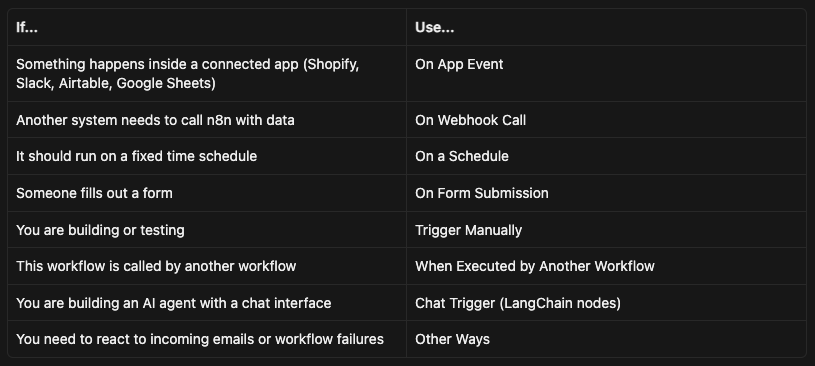
The trigger is the first node. Everything downstream depends on what data it brings in. Getting this right before you build anything else is worth the five minutes it takes to think through.
Once the trigger is configured, the next step is connecting the apps you need. Credentials in n8n work differently for every app, and some give you more than one way to connect.
If you are evaluating whether n8n or Shopify Flow is the right tool for a particular workflow, Conditional Logic Automations: When to Use n8n vs Shopify Flow covers the decision in detail.
Knowing how triggers work is one part of the equation. The harder question for most operations teams is knowing which workflows to automate first, in what order, and how to keep building without losing momentum after the first few go live.
The FlowKaizen guide covers the full system: how to find and score automation candidates across your organization, how to sequence builds for compounding ROI, and how to run the program without constant leadership oversight.

.png)
