

.png)
When you approve a new wholesale account, the approval itself is only half the work. The other half is making sure the customer sees the right catalog and pricing when they log in. A distributor should not see contractor pricing. An OEM account should not be browsing your standard wholesale tier. A high-volume buyer who qualified for preferred pricing should not be checking out at your base wholesale rate.
Without automation, this assignment happens inconsistently. Someone approves the account, forgets to assign the catalog, and the customer logs in to either wrong pricing or no pricing at all. In B2B stores with multiple pricing tiers, this creates support tickets, re-orders at the wrong price, and manual cleanup.
This Shopify Flow workflow fixes that by handling catalog and segment assignment automatically at the moment of approval. Based on the customer's industry type or expected order volume, the workflow assigns the correct customer tags and routes the account into the right pricing tier without requiring any manual action after approval.
Who this is for:
What it handles automatically:
This workflow is designed to run immediately after account approval, either as a standalone workflow triggered by approval, or as a second phase of your existing approval workflow.
The workflow fires when a customer account is approved. It then checks for signals that indicate which pricing segment the customer belongs to: either an industry tag applied during registration or an order volume metafield collected via your application form.
Based on what it finds, it branches to the appropriate segment assignment and applies the relevant tags. Those tags are what Shopify Plus B2B uses to determine which company and catalog the customer belongs to.
The decision tree for an industry-based segmentation:
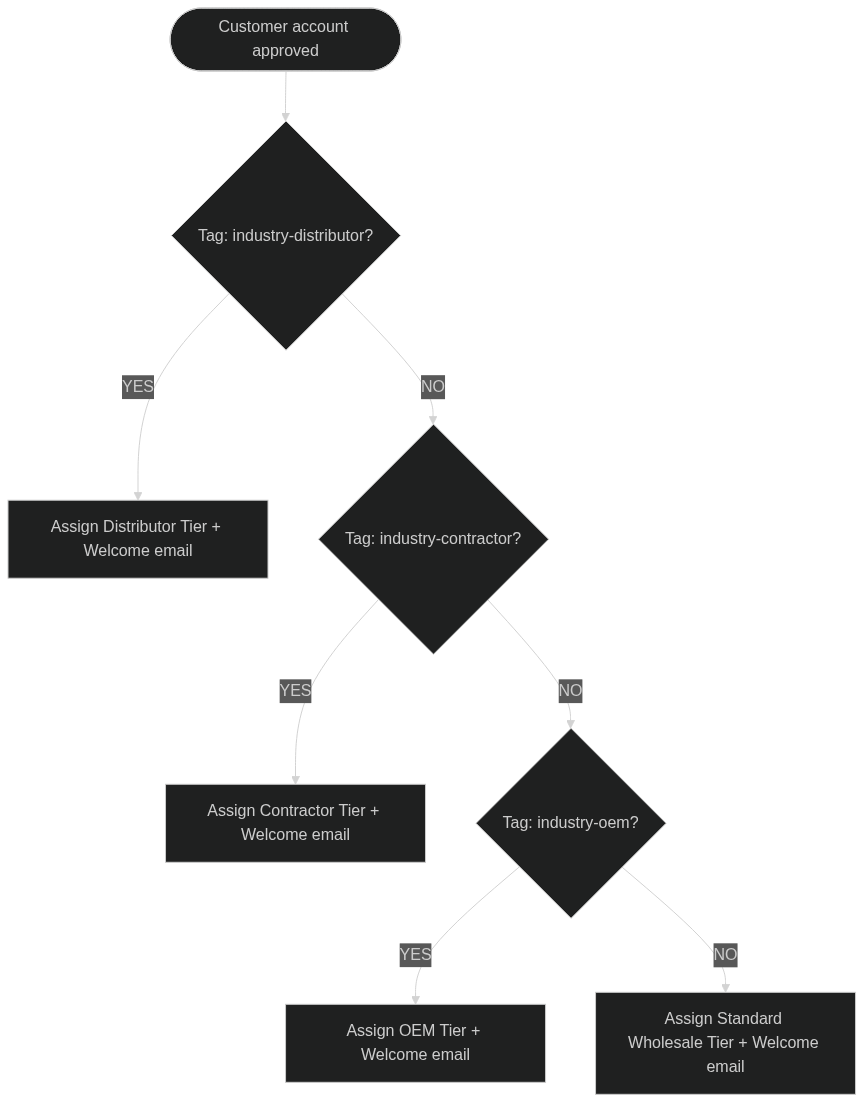
For order volume-based segmentation, the same branching structure applies with metafield value comparisons instead of tag checks.
Before setting this up, confirm the following:
If your application form does not yet collect industry type or order volume, this workflow cannot make segmentation decisions. Set up your registration form to capture this data before building the workflow. For how customer segmentation works in Shopify Plus, see How to Use Customer Segmentation in Shopify for B2B Success.
This guide covers the industry-tag approach first, followed by the order-volume variation.
From your Shopify admin, go to Apps > Flow. Click Create workflow in the top right.
Click Select a trigger and choose:
Customer account approved applicant
This trigger fires the moment you approve a customer's account application. It gives you access to the full customer record, including any tags and metafields that were applied during registration.
If you are approving customers via a separate flow (for example, the Auto-Approve Verified Business Emails workflow), you can chain this workflow by using Customer approved as the trigger instead, which fires when the approval action is taken by any workflow or manually.
Click Add condition after the trigger. Add:
Condition: Customer has tag
industry-distributorIf true, add these actions:
Action 1: Add tag to customer
tier-distributorAction 2 (if using B2B Companies): Add customer to company
Action 3: Send welcome email to customer
Your wholesale account is approved
Click Add else on the first condition. In the else branch, add a second condition:
Condition: Customer has tag
industry-contractorIf true, add these actions:
Action 1: Add tag to customer
tier-contractorAction 2 (if using B2B Companies): Add customer to company
Action 3: Send welcome email
In the else branch of the contractor condition, add another condition:
Condition: Customer has tag
industry-oemIf true:
tier-oem
In the last else branch (no industry tag matched), assign the default tier:
Action 1: Add tag to customer
tier-standardAction 2 (if using B2B Companies): Add customer to company
Action 3: Send welcome email
If a customer is assigned to your top tier (distributor or OEM in this example), you may want to notify your sales team so they can follow up personally:
Add an additional action in the distributor or OEM branch:
Action: Send internal email
New high-value account approved: {{customer.firstName}} {{customer.lastName}}
Name the workflow: Segment Assignment on Approval
Click Turn on workflow. Every approved customer will now be automatically tagged and assigned to their pricing segment.
Here is the full workflow at a glance (industry-tag version):
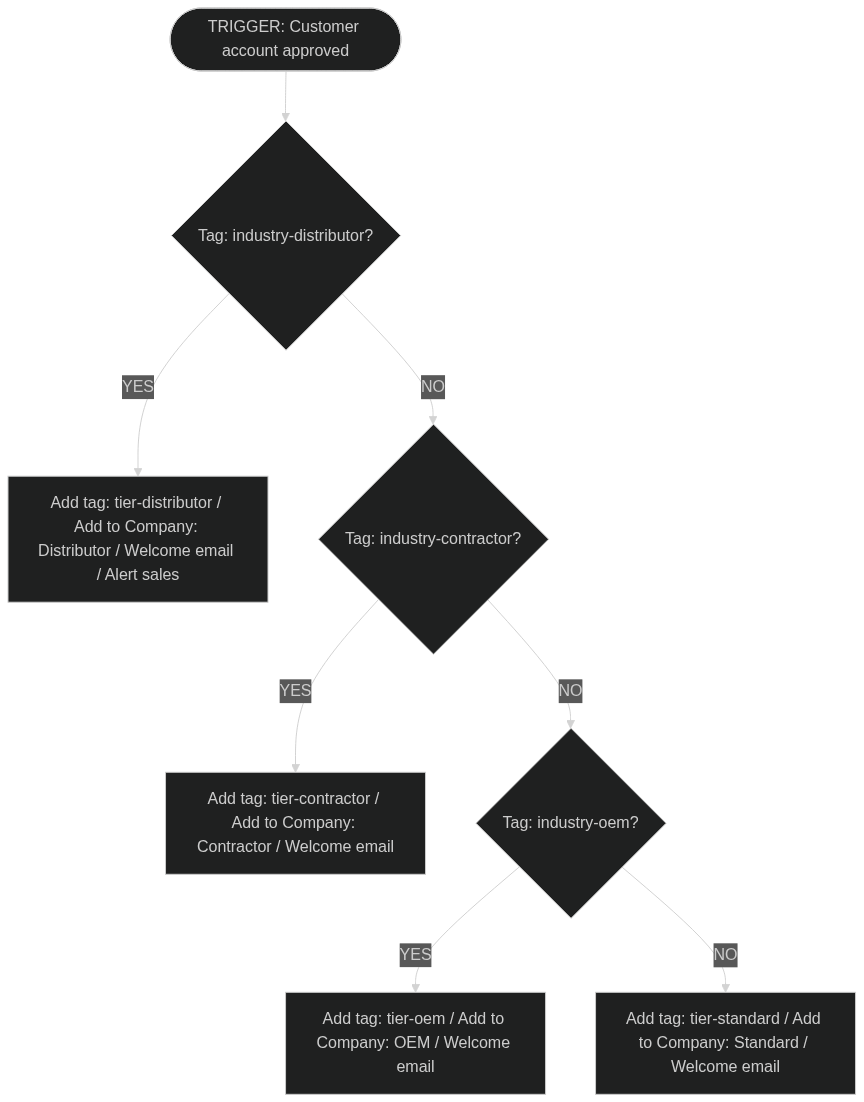
Each branch runs its actions and then the workflow ends. A customer only ever hits one branch.
If your application form collects expected annual order volume as a customer metafield (for example, customer.metafields.custom.annual_volume), you can use numeric comparisons instead of tag checks.
Replace the tag conditions with:

The actions in each branch remain the same: add a tier tag, optionally add to the corresponding company, send an appropriate welcome email.
Shopify Flow handles numeric metafield comparisons natively. Make sure the metafield is defined as a number type in your store settings, not a text field, for the greater-than comparison to work correctly.
Combine industry and volume for a two-factor assignment
Add both checks within the same branch: a customer must be tagged industry-distributor AND have an annual volume above a threshold to qualify for your top distributor tier. This prevents misassignment when a buyer self-selects an industry type that does not match their actual purchase behavior.
Add a fallback notification for untagged customers
If a customer reaches the final else branch and ends up in the standard tier, consider adding an internal alert to your team. Untagged customers may have completed the registration without selecting an industry, or your application form may not have captured the data. A heads-up lets your team manually review these accounts before they start ordering.
Tag with both industry and tier separately
Keep industry tags (what the customer told you) separate from tier tags (what segment they are assigned to). This lets you update tier assignments later without losing the original industry information. Example: industry-distributor stays on the record permanently; tier-preferred can be swapped to tier-distributor when the account qualifies for a higher tier.
Use this workflow as a companion to the approval queue
This workflow works cleanly alongside the New Wholesale Applicant Queue and Auto-Approve Verified Business Emails workflows. The applicant queue captures registrations; the auto-approve workflow handles the approval decision; this workflow handles segment assignment after approval. Each workflow does one thing and the three together cover the full onboarding flow.
Trigger from manual approvals too
If your team approves some accounts manually in Shopify admin (rather than through a workflow), the Customer account approved applicant trigger fires on manual approvals as well. This workflow will run regardless of how the approval happened, so you do not need separate workflows for manual vs. automated approval paths.
This workflow assigns customers to segments based on data collected at registration. It does not update segments when a customer's behavior changes over time (for example, when a standard-tier buyer grows to distributor-level volume). Segment reassignment based on purchase history requires a separate, scheduled workflow that checks order volume over a rolling period.
It also does not verify the accuracy of the industry type the customer self-selected. A customer who marks themselves as a distributor to access better pricing will be assigned to the distributor tier by this workflow. For high-value tiers, a manual review step before approval (handled in your approval queue workflow) is the right place to catch this.

.png)
