

.png)
Not every order should go straight to fulfillment. For B2B manufacturers and wholesalers, a $500 order and a $50,000 order carry very different levels of risk. Large orders can expose issues that a smaller order would never surface: a customer who has hit their credit limit, a pricing error on a custom SKU, inventory that isn't actually available, or a shipment that needs freight routing approval.
Most stores don't have a structured way to catch these before fulfillment starts. The order comes in, it enters the fulfillment queue, and the team finds the problem after picking has already begun or after a shipment has gone out.
This Shopify Flow workflow adds a fulfillment hold to any order that exceeds a dollar threshold you define. The order is received and confirmed to the customer, but it cannot be fulfilled until a manager reviews and releases the hold. At the same time, the workflow tags the order and sends an internal alert so the right person knows to act.
Who this is for:
What it handles automatically:
The customer experience is unaffected. They receive a normal order confirmation. The hold operates entirely on the fulfillment side, invisible to the buyer.
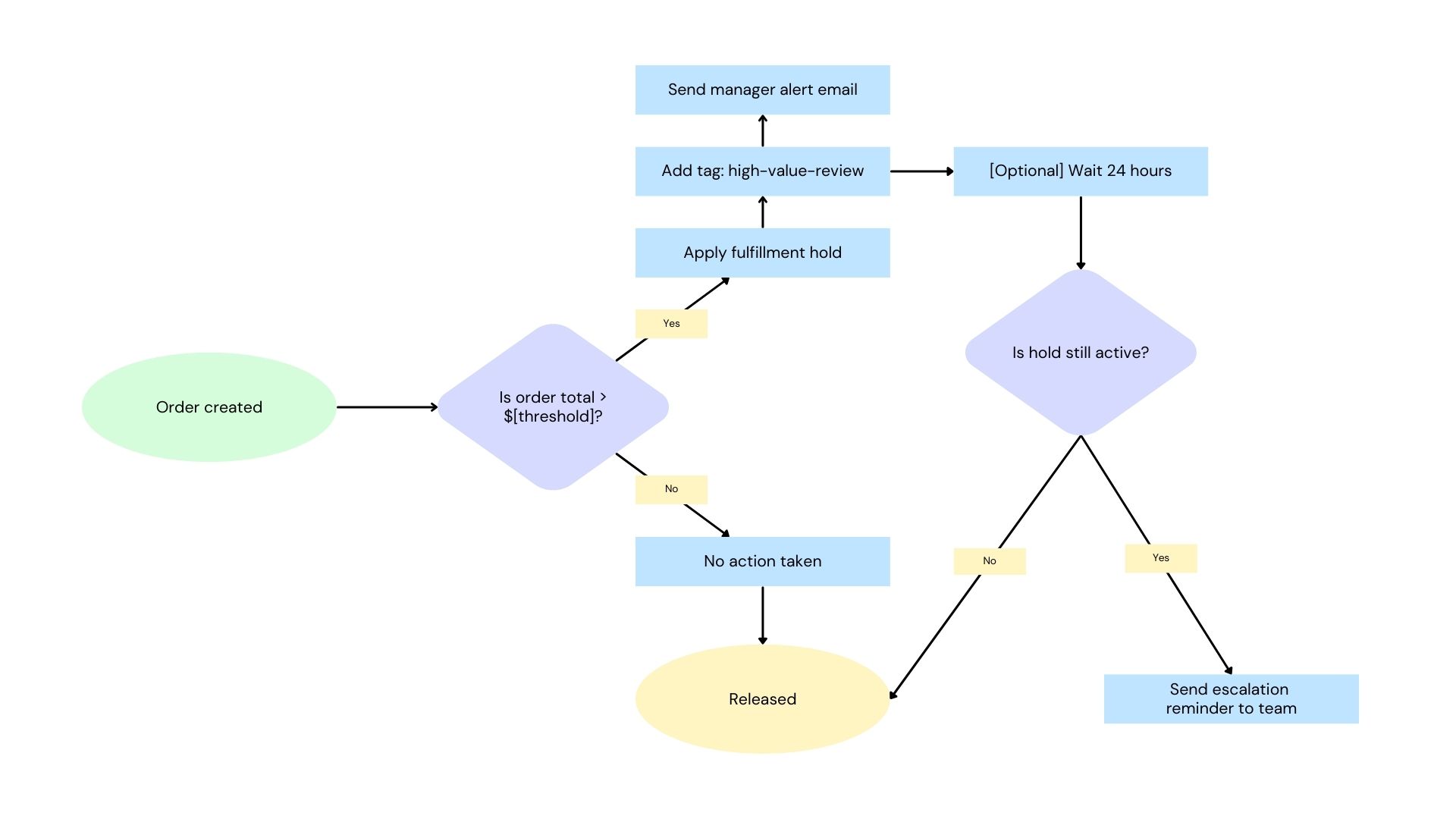
The workflow has a single decision point: is this order above the threshold? If yes, a fulfillment hold is applied and the team is notified. If no, the order passes through normally without any intervention.
Order created
      |
      v
Is order total > $[threshold]?
      |
   Yes  |  No
        |
Apply fulfillment hold    No action taken
Add tag: high-value-review  (order fulfills normally)
Send manager alert email
      |
      v
[Optional] Wait 24 hours
      |
Is hold still active?
      |
   Yes  |  No (released)
        |
Send escalation     End
reminder to team
The fulfillment hold is a native Shopify Flow action. It prevents the order from moving to any fulfillment workflow until the hold is manually released in the order admin. This is different from simply tagging the order: a tag is informational, a hold is functional.
Before setting this up, confirm the following:
From your Shopify admin, go to Apps > Flow. Click Create workflow in the top right.
Click Select a trigger and choose:
Order created
This trigger fires the moment a new order is placed, before any fulfillment action begins. That timing matters here: the hold needs to be applied before the order reaches your fulfillment team or 3PL.
Click Add condition after the trigger.
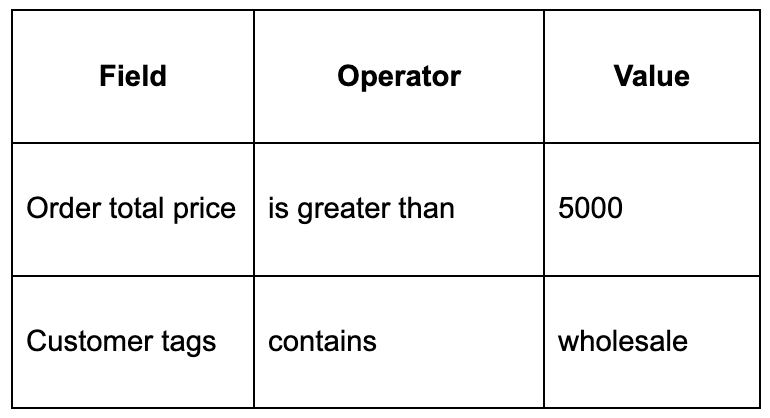
Set the condition:
.png)
Replace 5000 with your actual threshold. This is the gross order total in your store currency.
If you want to apply the hold only to specific customer segments (for example, only new wholesale accounts, or only orders paid on net terms), add additional conditions to the same group using All conditions are true (AND logic):
This prevents the workflow from flagging high-value DTC or staff orders that don't carry the same review risk.
When the condition is true, add the first action:
Action 1: Add fulfillment hold
This hold is visible in the order detail page in your Shopify admin under the fulfillment section. The order cannot be fulfilled until the hold is released by a staff member with the appropriate permissions.
Action 2: Add tag to order
This tag lets your team filter for all currently held orders from the Orders list in Shopify admin. It also serves as an input condition if you build a secondary workflow to release holds or track review status.
Action 3: Send internal email
A new order has been placed above your review threshold and has been placed on fulfillment hold.
A new order has been placed above your review threshold and has been placed on fulfillment hold.

Order: {{order.name}}
Customer: {{order.customer.firstName}} {{order.customer.lastName}}
Company: {{order.customer.defaultAddress.company}}
Order total: {{order.totalPrice}}
Payment method: {{order.paymentGatewayNames}}

Review and release the hold in your Shopify admin:
https://admin.shopify.com/orders/{{order.id}}
Include the direct link to the order. This removes the step of searching for the order manually and gets the reviewer into the right place immediately.
After the actions above, add a wait step:
Action: Wait
After the wait, add a condition to check whether the hold is still in place. The simplest proxy for this is to check whether the order tag still exists:
Condition: Order has tag
If true (the tag is still there, meaning the order hasn't been reviewed and the tag hasn't been removed), trigger a follow-up alert:
Action: Send internal email
This creates a self-managing escalation path. Orders don't sit in limbo silently.
Name the workflow: High-Value Order Hold
Click Turn on workflow. From this point, every order that exceeds your threshold will be held and flagged automatically.
Here is the full workflow at a glance:
Trigger: Order created
    |
    Condition: Order total price > $5,000
        |
        TRUE:                           FALSE:
        Action 1: Add fulfillment hold  No action (order processes normally)
        Action 2: Add tag: high-value-review
        Action 3: Send manager alert email
        |
        [Optional] Wait: 24 hours
        |
        Condition: Order still tagged high-value-review?
            |
            YES: Send escalation email
            NO: End
When a manager has reviewed the order and is ready to approve it:
At this point, remove the high-value-review tag manually (or via a second Flow workflow triggered by hold release) to keep your queue view accurate.
If the order needs to be cancelled instead, cancel it directly from the order admin and notify the customer with an explanation and next steps.
Set different thresholds for different customer segments
If your risk threshold varies by customer type, run multiple versions of this workflow with different conditions. For example:
Each condition group can target a specific customer tag combined with a different order value threshold.
Add a product-based condition
If certain SKUs carry higher risk regardless of order total (custom or made-to-order products, for example), add a product tag condition to catch those orders separately:
This pairs well with your manufacturing catalog if you have products that require production confirmation before fulfillment commits.
Route alerts to different inboxes by order size
For very large orders (above a second, higher threshold), route the alert to senior leadership instead of or in addition to the operations team.
Example:
Build this as a second condition block within the same workflow or as a separate workflow with a higher threshold condition.
Use the tag as a reporting filter
At the end of each month, filter your Orders list by high-value-review (or a date-ranged export) to see how many orders were held, their total value, and how they were resolved. This gives you data to recalibrate your threshold over time.
Connect to your ERP review process
If your ERP (NetSuite, Business Central, Acumatica, or similar) has its own approval or credit check process, you can extend this workflow to fire a webhook at the point of hold. This notifies your ERP that a held order exists without requiring manual entry. For more on connecting Shopify order workflows to ERP systems, see How to Import Orders from ERP to Shopify and How to Configure Acumatica Sales Order Creation from Shopify Orders.
The fulfillment hold prevents picking and shipping but does not cancel the order or refund the customer automatically. If a held order needs to be declined, that action is still manual.
This workflow also does not check credit limits or payment history directly. It applies the hold based on order value alone. For credit-based review logic, that data would need to come from a tag applied to the customer record by your ERP or finance team, which can then be used as an additional condition in this workflow.
For the broader context on how Shopify handles B2B order review, including the Payment Customization Function API for checkout-level holds, see How to Set Up B2B Order Review Workflows in Shopify.

.png)
