

.png)
When you extend Net 30 or Net 60 terms to a wholesale account, the clock starts on the invoice the moment the order is placed. For manufacturers running a dozen or more accounts on payment terms, tracking every due date manually is unsustainable. AR teams either maintain spreadsheets, rely on their ERP to send alerts, or discover overdue invoices only when reconciling at month-end.
Shopify has the payment schedule data. Every B2B order placed through a company account with net terms has a payment schedule attached to it, including the exact date payment is due and whether it has been completed. What most merchants don't know is that Shopify Flow can react to that data automatically.
This workflow has two parts. The first sends a payment reminder to the customer on the day their invoice is due, and notifies your AR team simultaneously. The second part handles what happens when the due date passes without payment: it flags the customer account, tags the order, and sends an escalation alert internally.
Who this is for:
What it handles automatically:
What it does not replace: This workflow sends reminders and flags accounts. It does not process payments, update your ERP, or block future orders from overdue accounts at checkout. See the Customization Tips section for how to extend it toward those goals.
Shopify tracks payment schedules on B2B orders. When an order is placed with net terms, Shopify creates a payment schedule with a dueAt date and a completedAt field that remains null until payment is recorded. Shopify fires a webhook called payment_schedules/due on the day the payment schedule becomes due. Flow listens for that webhook.
The workflow splits into two branches from that trigger point.
Branch 1: Due date reminder (same-day)
 ┌─────────────────────────────────┐
 │  Payment schedule due           │  ← Trigger
 └─────────────┬───────────────────┘
               │
               ▼
 ┌─────────────────────────────────┐
 │  Payment terms name contains    │
 │  "Net"?                         │  ← Condition (filter to net terms orders)
 └──────┬──────────────────┬───────┘
       YES                  NO
        │                   │
        ▼                   ▼
 ┌──────────────────┐  ┌──────┐
 │ Send payment due │  │ END  │
 │ reminder to      │  └──────┘
 │ customer         │
 │                  │
 │ Send AR team     │
 │ internal alert   │
 │                  │
 │ Tag order:       │
 │ payment-due      │
 └──────────────────┘
Branch 2: Overdue escalation (scheduled check)
A second, separate workflow runs on a scheduled trigger (daily) and looks for orders that are overdue and have not yet been addressed.
┌──────────────────────────────────────┐
 │  Scheduled time trigger (daily)      │  ← Trigger
 └───────────────────┬──────────────────┘
                     │
                     ▼
 ┌──────────────────────────────────────┐
 │  Order has tag: payment-due          │  ← Condition 1
 │  AND payment terms overdue = true    │  ← Condition 2
 │  AND order does NOT have tag:        │
 │  payment-overdue                     │  ← Condition 3 (prevent duplicates)
 └──────┬───────────────────────┬───────┘
       YES                       NO
        │                        │
        ▼                        ▼
 ┌──────────────────────┐   ┌──────┐
 │ Add tag to order:    │   │ END  │
 │ payment-overdue      │   └──────┘
 │                      │
 │ Add tag to customer: │
 │ overdue-account      │
 │                      │
 │ Send internal        │
 │ escalation alert     │
 └──────────────────────┘
The two branches are built as two separate workflows in Flow. They work together: Branch 1 fires on the due date and sets the payment-due tag. Branch 2 fires daily and looks for orders where that tag exists but payment has not been recorded.
Before setting this up, confirm the following:
From your Shopify admin, go to Apps > Flow. Click Create workflow.
Click Select a trigger and choose:
Payment schedule due
This trigger fires on the day a payment schedule becomes due on a B2B order. It gives the workflow access to the order and customer data associated with that payment schedule.
This trigger only fires for orders that have a payment schedule attached, which means orders placed through a B2B company account with net terms configured. It does not fire for standard checkout orders paid at time of purchase.
Click Add condition after the trigger.
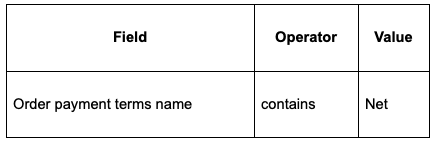
This filters out any non-net-terms payment schedules. If you use custom payment term names (e.g., "30-Day Invoice"), adjust this condition to match your naming convention.
Add the first action:
Action 1: Send email
Hi {{order.customer.firstName}},

This is a reminder that payment for Order {{order.name}} placed on {{order.createdAt}}
is due today.

Order total: {{order.totalPrice}}
Payment terms: {{order.paymentTerms.paymentTermsName}}

To arrange payment, please contact us at [your AR contact email or phone].

Thank you,
[Your company name]
Adjust the body to match your company's tone and include your preferred payment instructions (bank transfer details, ACH information, or a link to your payment portal if you have one).
Action 2: Send internal email
A B2B order payment is due today.

Order: {{order.name}}
Customer: {{order.customer.firstName}} {{order.customer.lastName}}
Company: {{order.customer.defaultAddress.company}}
Order total: {{order.totalPrice}}
Payment terms: {{order.paymentTerms.paymentTermsName}}
Order date: {{order.createdAt}}

View order in Shopify admin:
https://admin.shopify.com/orders/{{order.id}}
Action 3: Add tag to order
This tag is what Branch 2 (the overdue escalation) will use to find orders that need follow-up. Do not skip this step.
Name the workflow: Net Terms Payment Due Reminder
Click Turn on workflow.
Create a second, separate workflow for the daily overdue check.
In Flow, click Create workflow.
Click Select a trigger and choose:
Scheduled time
After the trigger, add a condition group set to All conditions are true (AND logic):
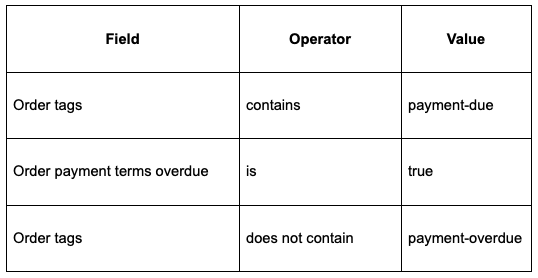
The third condition prevents the workflow from sending duplicate escalation alerts for accounts that have already been flagged.
Action 1: Add tag to order
Action 2: Add tag to customer
This tag makes overdue customers visible as a segment in your Shopify admin. You can use it to build a saved customer segment or reference it in other workflows (for example, a workflow that prevents new orders from accounts tagged overdue-account).
Action 3: Send internal email
A B2B order payment is past due and has not been recorded.

Order: {{order.name}}
Customer: {{order.customer.firstName}} {{order.customer.lastName}}
Company: {{order.customer.defaultAddress.company}}
Order total: {{order.totalPrice}}
Payment terms: {{order.paymentTerms.paymentTermsName}}

This account has been tagged as overdue-account in Shopify.

View order in Shopify admin:
https://admin.shopify.com/orders/{{order.id}}
Name the workflow: Net Terms Overdue Escalation
Click Turn on workflow.
Workflow 1: Net Terms Payment Due Reminder
┌──────────────────────────────────────────┐
 │  TRIGGER: Payment schedule due           │
 └────────────────────┬─────────────────────┘
                      │
                      ▼
 ┌──────────────────────────────────────────┐
 │  CONDITION: Payment terms name           │
 │  contains "Net"                          │
 └──────┬───────────────────────────┬───────┘
       TRUE                        FALSE
        │                           │
        ▼                           ▼
 ┌──────────────────────┐     ┌─────────────────────┐
 │ Send email to buyer  │     │ END                 │
 │ (payment due today)  │     └─────────────────────┘
 │ Send AR alert        │
 │ Tag order:           │
 │ payment-due          │
 └──────────────────────┘
Workflow 2: Net Terms Overdue Escalation
 ┌──────────────────────────────────────────┐
 │  TRIGGER: Scheduled time (daily 9 AM)    │
 └────────────────────┬─────────────────────┘
                      │
                      ▼
 ┌──────────────────────────────────────────┐
 │  CONDITIONS (all must be true):          │
 │  ● Order tag contains "payment-due"      │
 │  ● Payment terms overdue = true          │
 │  ● Order tag does NOT contain            │
 │    "payment-overdue"                     │
 └──────┬───────────────────────────┬───────┘
       TRUE                        FALSE
        │                           │
        ▼                           ▼
 ┌──────────────────────┐     ┌──────┐
 │ Tag order:           │     │ END  │
 │ payment-overdue      │     └──────┘
 │ Tag customer:        │
 │ overdue-account      │
 │ Send escalation      │
 │ alert to AR          │
 └──────────────────────┘
Send a pre-due reminder 7 days before the due date
The payment_schedules/due trigger fires on the due date. To send a reminder earlier, use a second scheduled time workflow that runs daily, checks orders where payment is due in 7 days (using paymentTerms.dueInDays as a condition), and sends an advance notice email. This is more involved to configure but reduces last-minute payment scrambles.
Restrict new orders from overdue accounts
Once an account has the overdue-account customer tag, a separate Shopify Flow workflow can intercept new orders from that customer and apply a fulfillment hold, combined with an internal alert. This creates a soft block without requiring checkout customization (which would require Shopify Functions). The hold can be released manually when the overdue balance is cleared.
Clear the overdue tag when payment is recorded
When payment is recorded against an order in Shopify, build a third Flow workflow triggered on payment status change that removes the payment-due and payment-overdue order tags and removes the overdue-account customer tag if no other outstanding orders remain. This keeps your segments clean over time.
Route escalations by account size
For high-value accounts, route overdue alerts to a senior contact or account manager rather than a general AR inbox. Add a condition that checks the order total and splits the alert routing based on value:
Log overdue events as customer notes
Use the "Add customer note" action to record the overdue event on the customer record with a timestamp. This creates an audit trail that is visible inside the Shopify admin customer profile without requiring an external CRM.
This workflow sends reminders and flags accounts. It does not:
For the full picture on how payment terms are configured and managed in Shopify B2B, see How to Offer Trade Credit Online: Net Terms for New B2B Customers on Shopify.


.png)
