


.png)
The workflow checks a single attribute on the customer record: their email address. Specifically, it checks whether the email domain belongs to a known free email provider.
Free email providers (Gmail, Yahoo, Hotmail, Outlook, iCloud, AOL) are used by individual consumers. Business customers almost always register with a corporate domain tied to their company. By filtering on this, you can make a reasonable automated decision on the majority of your applicants without any manual input.
The decision tree looks like this:
Customer registers
        |
        v
Does email contain a free domain?
  (gmail.com, yahoo.com, hotmail.com, outlook.com, icloud.com, aol.com)
        |
   Yes  |  No
        |
   Flag for       Approve customer
   manual review  Tag: auto-approved
                  Send welcome email
Flow evaluates the conditions from top to bottom. If any condition is met (free email domain detected), it takes the flag-for-review path. If none of the conditions match, the customer's email is treated as a business email and approval proceeds automatically.
Before setting this up, confirm the following:
From your Shopify admin, go to Apps > Flow. Click Create workflow in the top right.
Click Select a trigger and choose:
Customer account approved applicant
This trigger fires when a customer submits a request to create an account on your store. It gives you access to the customer's email, name, and any information collected during registration before any approval action is taken.
If your store uses a different registration method (for example, customers are created directly without an application step), you can also use Customer created as the trigger. The rest of the workflow is the same.
Click Add condition after the trigger. You will build a condition group that catches all free email providers you want to flag.
Set the condition group to Any condition is true (OR logic). This means if the email matches any of the free domains you list, the workflow will treat it as unverified.
Add the following conditions one at a time:
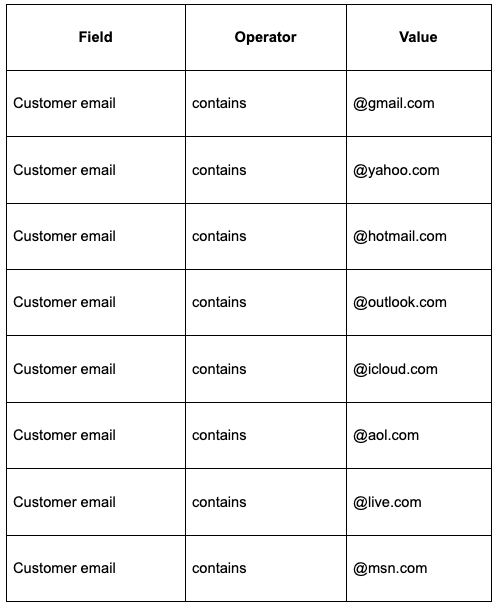
You can add or remove domains from this list based on what you see in your applicant data.
When the condition group is true (free email detected), add these actions:
Action 1: Add a tag to the customer
pending-review
Action 2: Send an internal email to your team
New applicant requires manual reviewThis keeps your team informed without requiring them to check a queue manually.
Action 3 (optional): Send a holding email to the customer
Click Add else on the condition block to create the branch that handles customers who do not have a free email address.
In the else branch, add these actions:
Action 1: Approve the customer
Action 2: Add a tag to the customer
auto-approved
Action 3: Send a welcome email
{{customer.email}} variable)Your account has been approved
Give the workflow a clear name: Auto-Approve Verified Business Emails
Click Turn on workflow to activate it. From this point forward, every new customer applicant will pass through this logic automatically.
Here is the full workflow at a glance:
Trigger: Customer account approved applicant
    |
    Condition Group (Any is true):
        Email contains @gmail.com
        Email contains @yahoo.com
        Email contains @hotmail.com
        Email contains @outlook.com
        Email contains @icloud.com
        Email contains @aol.com
        Email contains @live.com
        Email contains @msn.com
    |
    TRUE (free email):                  FALSE (business email):
    - Add tag: pending-review           - Approve customer account
    - Send internal alert email         - Add tag: auto-approved
    - Send customer holding email       - Send welcome email
Flow evaluates each condition sequentially. The moment any one matches, it routes to the TRUE path and stops checking the rest. This means the order of conditions does not affect the outcome, only whether a match occurs.
Add a whitelist for specific domains you trust
If you work with a small set of known wholesale partners, you can add an additional condition at the top of your workflow that checks for a specific approved domain and auto-approves without checking the free-email list.
Example:
@acmesupply.com → Approve immediately + tag vip-account
Put this as a separate condition block before the free-email check so it routes known partners directly without going through the full filter.
Add a blacklist for domains you want to block
The same approach works in reverse. If you've seen fraudulent applications from certain domains or regions, add those domains to your "flag for review" condition group alongside the free email providers.
Combine with customer metafields for stronger verification
If your registration form collects a company name, tax ID, or purchase order number via metafields, you can add metafield conditions to the workflow alongside the email check.
Example: Auto-approve only if email is a business domain AND the company_name metafield is not blank.
This adds a second layer of confidence before granting access.
Assign customers to a company on approval
If you use Shopify's B2B Companies feature, you can extend the auto-approved branch to also run a Create company or Add customer to company action. This works well if each applicant represents a new business account that needs its own company profile in your admin.
Route high-priority applicants to a sales rep
If you want certain domains (e.g., large enterprise companies) to get a personal follow-up instead of a generic welcome email, add a condition that checks for specific domains and triggers a different email action directed at your sales team.
Track approval rates over time
Use the auto-approved and pending-review tags to filter customers in your Shopify admin and build a simple report. Over time, this data tells you what percentage of applicants are coming in with business emails vs. free emails, which is useful for evaluating the quality of your inbound registration traffic.
This workflow verifies email domain format only. It does not confirm that the domain is active, that the business is legitimate, or that the customer has the authority to purchase on behalf of their company. For high-value accounts or regulated industries, combine this with a manual review step for any account above a certain order threshold.
For that next layer, see How to Set Up B2B Order Review Workflows in Shopify and How to Setup When B2B Orders Require Review.


.png)
