


.png)
Most B2B stores don't approve every applicant automatically. Some need a human to look at each registration before granting access, to verify the business, confirm eligibility, or assign the right pricing tier. The problem isn't the decision itself. The problem is what happens between the moment someone applies and the moment your team actually reviews them.
Without a structured queue, applications get missed. They sit in a generic customer list with no flag, no owner, and no urgency. Your team checks manually when they remember to. Customers wait without any acknowledgment that their application was received. Some follow up. Some don't, and they move on.
This Shopify Flow workflow fixes that by building a structured applicant queue automatically. The moment a new wholesale customer registers, the workflow tags them, notifies your team, and sends the applicant a confirmation so they know their application is in progress. Every application is captured, routed, and tracked, without anyone having to manually manage a list.
Who this is for:
What it handles automatically:
This workflow is designed to sit alongside (not replace) a manual review step. It doesn't make approval decisions. It makes sure nothing gets lost before a human makes that decision.
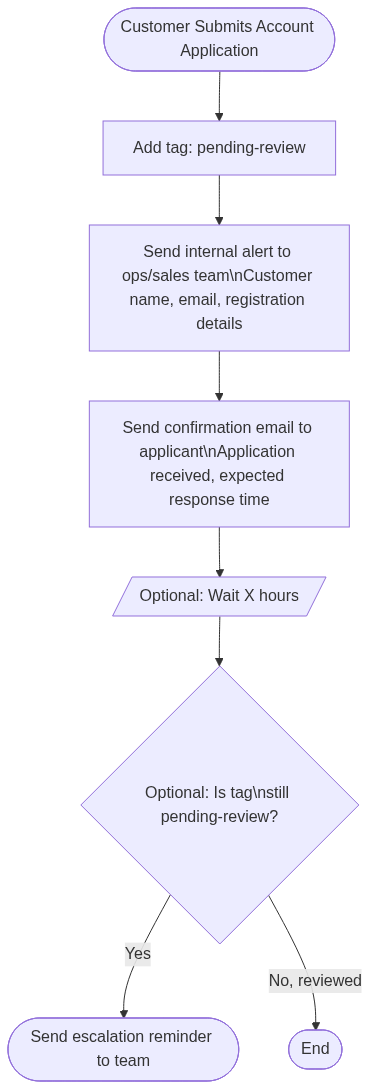
The workflow is straightforward: every new applicant triggers the same set of actions. There is no branching logic here. The goal is not to filter. It's to capture and route.
Customer submits account application
              |
              v
Add tag: pending-review
              |
              v
Send internal alert to ops/sales team
(customer name, email, registration details)
              |
              v
Send confirmation email to applicant
(application received, expected response time)
              |
              v
[Optional] Wait X hours
              |
              v
[Optional] Check if tag still = pending-review
              |
         Yes  |  No (reviewed)
              |
    Send escalation        End
    reminder to team
The optional wait-and-check step is what prevents applications from sitting unreviewed. After a set window (24 hours, for example), Flow checks whether the pending-review tag is still on the account. If it is, the application hasn't been touched, and the workflow sends a reminder to your team.
Before setting this up, confirm the following:
From your Shopify admin, go to Apps > Flow. Click Create workflow in the top right.
Click Select a trigger and choose:
Customer account approved applicant
This trigger fires as soon as a customer submits a registration request on your B2B store. It gives you access to the customer record immediately, before any approval or rejection action is taken.
If customers are being created directly (not via an application step), use Customer created as the trigger instead. The workflow logic is the same.
Click Add action directly after the trigger. No condition needed. Add the first action:
Action: Add tag to customer
This tag is the foundation of your queue. Every applicant gets it immediately on registration. When your team reviews and approves or rejects an account, they remove this tag (manually or via a separate approval workflow). As long as the tag exists, the customer is in the queue.
This tag also becomes your filter. In Shopify admin under Customers, you can filter by pending-review at any time to see your full applicant queue in one view.
Add a second action immediately after the tag:
Action: Send internal email
A new account application has been submitted.

Name: {{customer.firstName}} {{customer.lastName}}
Email: {{customer.email}}
Company: {{customer.defaultAddress.company}}
Phone: {{customer.phone}}

Review this applicant in your Shopify admin:
https://admin.shopify.com/customers/{{customer.id}}
Use the dynamic variables available in Flow to pull the customer's details directly into the email. The direct link to their customer record saves your team from having to search for the applicant manually.
If your store collects additional information at registration via metafields (tax ID, business type, order volume estimate), you can pull those values into the email body as well using the relevant metafield variables.
Add a third action to notify the customer that their application was received:
Action: Send email to customer
Hi {{customer.firstName}},

Thank you for applying for a wholesale account.

We've received your application and our team will review it within 1 business day.
You'll receive an email once a decision has been made.

If you have any questions in the meantime, reply to this email or contact us at [your email].

[Your company name]
Set a realistic and honest response time. If your team typically reviews within 24 hours, say that. Customers who receive a confirmation email are far less likely to follow up with support tickets asking about their status.
If you want to catch applications that slip through without being reviewed, add a wait step after the confirmation email:
Action: Wait
After the wait, add a condition:
Condition: Customer has tag
If the condition is true (meaning the tag hasn't been removed because the application hasn't been reviewed), trigger an escalation:
Action: Send internal email
This creates accountability in the process without requiring anyone to actively monitor a queue. The reminder comes to them.
Name the workflow: New Wholesale Applicant Queue
Click Turn on workflow. From this point, every new applicant automatically enters your structured review queue.
Here is the full workflow at a glance:
Trigger: Customer account approved applicant
    |
    Action: Add tag → pending-review
    |
    Action: Send internal email to ops/sales team
    (name, email, company, link to admin profile)
    |
    Action: Send confirmation email to applicant
    (received, 1 business day response time)
    |
    [Optional] Wait: 24 hours
    |
    [Optional] Condition: Customer still has tag pending-review?
        |
        YES: Send escalation email to manager
        NO: End (application was reviewed on time)
No branching is needed in the core workflow. Every applicant goes through the same path. The only branch is the optional escalation check at the end, and even that is a simple tag presence check.
Route applicants to different team members based on region or company type
If your sales team is divided by region or industry, add a condition after the trigger to route the internal alert to the right person.
Example: If customer address province equals "California" → send alert to the West Coast sales rep. If province equals "New York" → send to the East Coast rep.
You can also route based on company type if you collect that via a registration metafield (e.g., distributor vs. contractor vs. end-user).
Add a second tag to segment applicants by source
If your store has multiple registration entry points (e.g., a wholesale landing page, a trade program application, a referral link), you can tag applicants differently based on how they registered.
Use a metafield or UTM parameter captured at registration to add a secondary tag like source-wholesale-form or source-trade-program. This makes it easier to measure which acquisition channels are generating the most applicants.
Connect to a Slack channel instead of email
If your team lives in Slack, replace the internal email action with a Slack notification using Flow's Slack integration. Send the same applicant details to a dedicated #new-applicants channel. This is often faster to act on than email, especially for smaller teams.
Combine with the auto-approve workflow
This queue workflow works well as a companion to the Auto-Approve Verified Business Emails workflow. In that setup, applicants with corporate email domains get auto-approved and skip the queue entirely. Applicants with free email domains land in this manual review queue. The two workflows handle the full applicant funnel without overlap.
Build your queue view in Shopify admin
Once the workflow is live, go to Customers in your Shopify admin and filter by tag: pending-review. Save this as a customer segment called Applicant Queue. Your team now has a permanent, live view of every pending application without needing to open Flow or check email.
Remove the tag as part of your approval or rejection workflow
The pending-review tag only works as a queue signal if it gets removed when an application is acted on. Build a companion Flow workflow (or handle it manually) that removes the tag when a customer is approved or rejected. This keeps your queue view accurate and prevents old applications from cluttering the list.
This workflow captures and routes applicants. It does not make approval decisions. A team member still needs to review each application and approve or reject the account in Shopify admin.
For automating part of that review step, pair this workflow with Flow: Auto-Approve Verified Business Emails, which handles the subset of applicants who register with a corporate email address.
For managing what happens after a customer is approved (including welcome emails, catalog assignment, and company setup), those actions should be part of a separate post-approval workflow.

.png)
